Migrating a website to a new server or domain can be a complex and time-consuming task. Fortunately, there are several tools available to help automate the process and make it more manageable.
One of the most popular migration tools is the All-in-One WP Migration plugin, which allows users to export and import their website content, including themes, plugins, and media files.
However, like any other software tool, the plugin can run into issues, with one of the most common being the import process getting stuck.
Importing stuck issues can be frustrating, especially if you have a large website or are on a tight schedule.

If you’re experiencing import-stuck issues with the plugin, don’t worry.
There are several methods you can use to fix the problem, and we’re here to help.
In this blog post, we’ll explain why import-stuck issues can occur and provide step-by-step solutions to help you resolve them quickly and easily.
By the end of this post, you’ll have the knowledge and confidence to tackle any import-stuck issues that you may encounter when using the plugin.
Table of Contents
All-in-One WP Migration Import & Export Stuck Issue
Struggling with All-in-One WP Migration freezing mid-import or export? You’re not alone. It’s a common headache, especially with big sites or shared hosting limits. This guide shows 6 tried-and-tested fixes to get your WordPress migration back on track without stress.
✅ What Causes It?
Big file sizes, server limits (like PHP timeout), slow internet, plugin conflicts, or outdated versions often trigger the issue.
🛠 How to Fix It:
(i) Hack the Upload Limit – Tweak the plugin’s constants.php file to bump limits to 20GB.
(ii) Raise Server Limits – Adjust upload_max_filesize, post_max_size, and max_execution_time in PHP settings.
(iii) Avoid Timeouts – Switch to better hosting (preferably cloud) or increase execution time.
(iv) Plugin Conflicts? – Disable other plugins and test, especially security or cache ones.
(v) Use Migrate Guru – A free plugin that does heavy lifting via its own servers (zero load on your host).
(vi) Beginners? Use UpdraftPlus – Easy backup/restore via Dropbox or Google Drive, ideal for small sites.
💡 Export Stuck at 100%?
Your disk space might be full. Clean it up with WP Optimize, delete old backups, clear error logs, and remove unused media.
With these fixes, you can overcome import/export stalls like a pro and migrate WordPress sites hassle-free.
Reasons for Import & Export Stuck Issues
Import-stuck issues can occur for several reasons, including:
A. Large file size: If you’re importing a large website, the size of the file can impact the import process. The All-in-One WP Migration plugin has a limit on the size of the file that can be imported. If your file is larger than the limit, it may get stuck during the import process.
B. Server limitations: Your server’s settings can also impact the import process. For example, your server may have a low PHP timeout limit, which can cause the import process to time out and get stuck.
C. Network issues: Network issues such as slow internet speeds or network interruptions can cause the import process to get stuck.
D. Software conflicts: Conflicts with other software on your server, such as security plugins or firewalls, can also cause import-stuck issues.
E. Other possible causes: Other potential causes of import stuck issues include incomplete exports, corrupted files, or outdated versions of the All-in-One WP Migration plugin.
Solutions For Import Stuck
1. Increase Upload Limit
The free version of the All-in-One WP Migration plugin doesn’t allow uploading over 500 MB, sometimes over 250 MB. In that case, we need to do some tricks with the plugin.
1. Go to Plugins > Plugin File Editor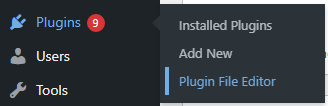
2. Select the plugin from the top right.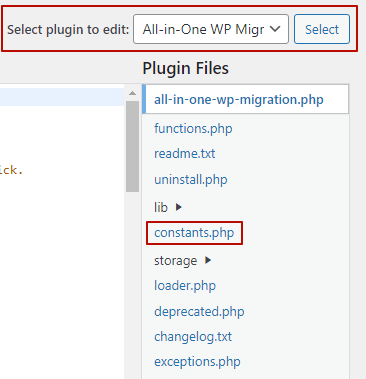
3. Open constants.php and locate it on the right side
4. Press CTRL+F under the coding section and find a comment of Max File Size. It can be found on line no. 410.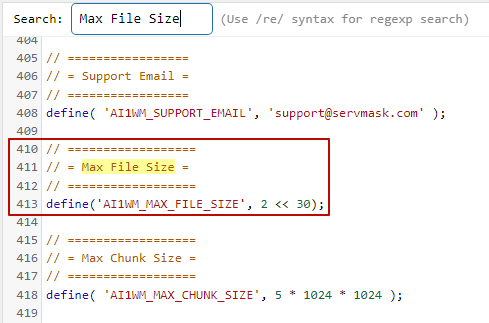
5. In the new version, their developer has removed the line.
So you won’t find it; search ‘support@servemask.com’ and paste the following code line below
define(‘AI1WM_MAX_FILE_SIZE, 5 * 1024 * 1024)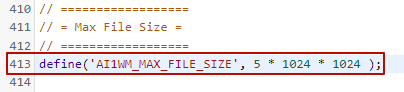
This increases the upload limit to 20 GB. In the older version, replace the old rule with the new rule.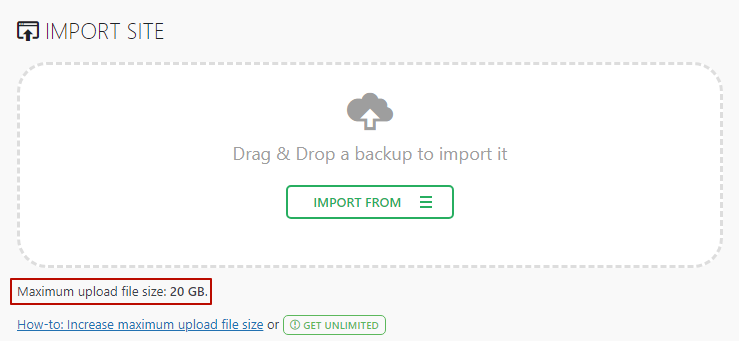
6. Update file; before doing this, don’t forget to deactivate the plugin and get a backup.
If you don’t see any change after updating the file, then we need to increase the server limit, which we will learn about in the next step.
2. Increase Server Upload Limit
To gain control over server resources, shared web hosting limits uploads. Because of this, we recommend cloud hosting that works perfectly and gives you full control over your resources, performance, reliability, and security.
Now follow the step to raise server limit
1. Navigate to Select PHP Version under Software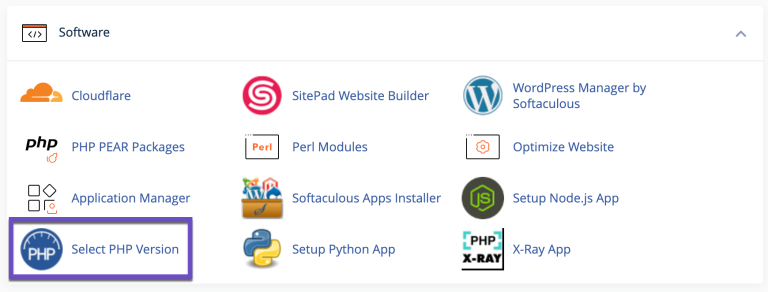
2. Open it and click on the options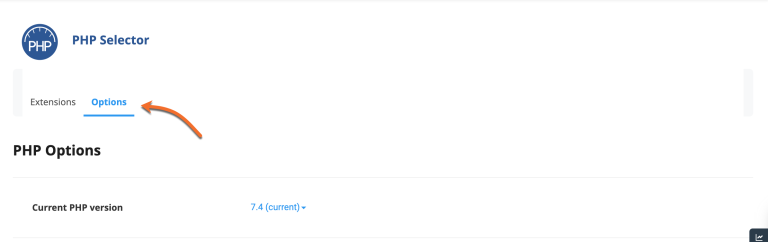
3. Locate upload_max_filesize and increase its size.
Now save it.
If the upload limit in the All-In-One WP Migration plugin doesn’t increase, then you should enlarge post_max_size, located in options.
3. Server Time Out
Shared hosting not only sets limitations on uploading but also on max_execution_time. So after a while, the server times out, especially while uploading a large file.
In the Select PHP Version options, you can change the value of execution_time.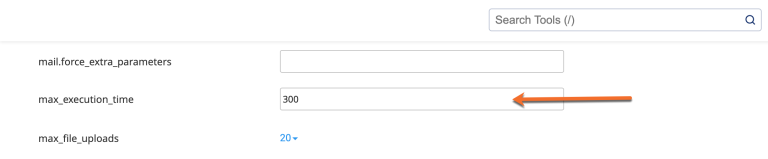
4. Plugin conflicts
If you’re using WordPress, there is a possibility that multiple plugins may conflict with each other because of rogue coding, improper speed optimization, or using the most advanced PHP version. You can fix it with the guide.
5. Alternative Method
We love the Migrate Guru plugin as it uses its own server resource for migration.
So no load on the origin server, no server crashes, and no storage space is required.
It can clone 1 GB of sites in under 30 minutes and move sites as large as 200 GB.
We have migrated more than 100 client sites through this amazing plugin.
To migrate your site from the plugin, you need to follow the simple steps:
1. Install WordPress on new server
2. Get FTP details, server IP, and the public_html root folder path
3. Install Migrate Guru on the old server
4. Enter the email address and press Migrate Site.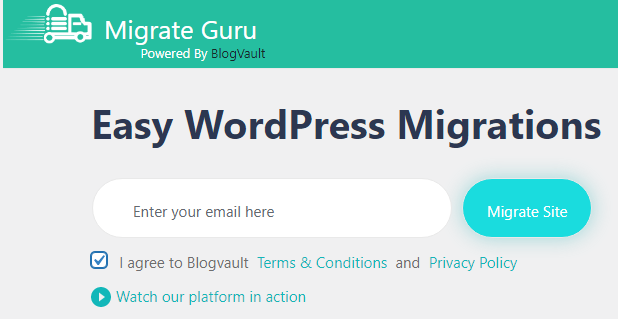
5. Select your new host; if it is not listed here,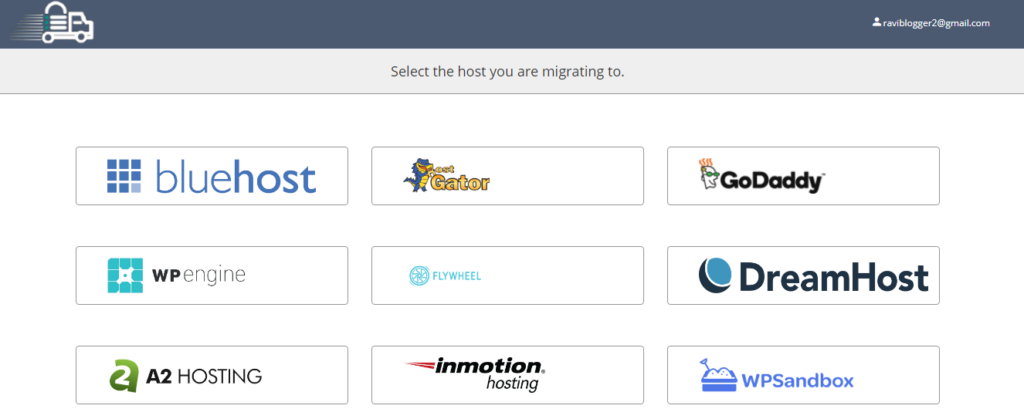
Click on other hosts down there.
6. Fill out the following information in the following form.
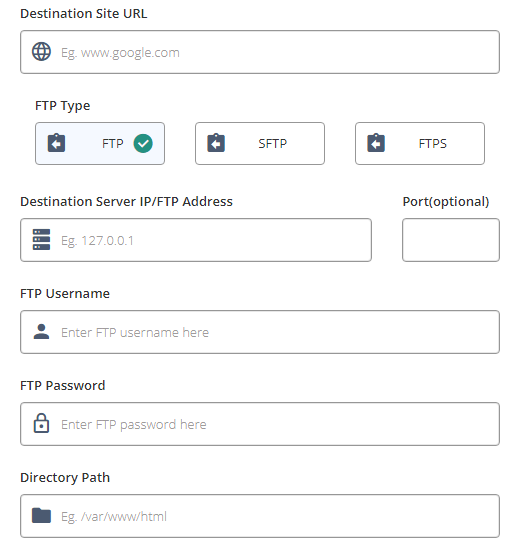
- Destination site url
- Destination server IP
- FTP username
- FTP password
- Directory path: /public_html/ (in most cases)
7. Click the migrate button.
6. Beginner Method
1. If you’re a total beginner, I will recommend you install the UpdraftPlus plugin.
2. Go to Settings and connect Dropbox (free storage up to 2 GB). You can also connect Amazon S3, Google Drive, or Microsoft OneDrive.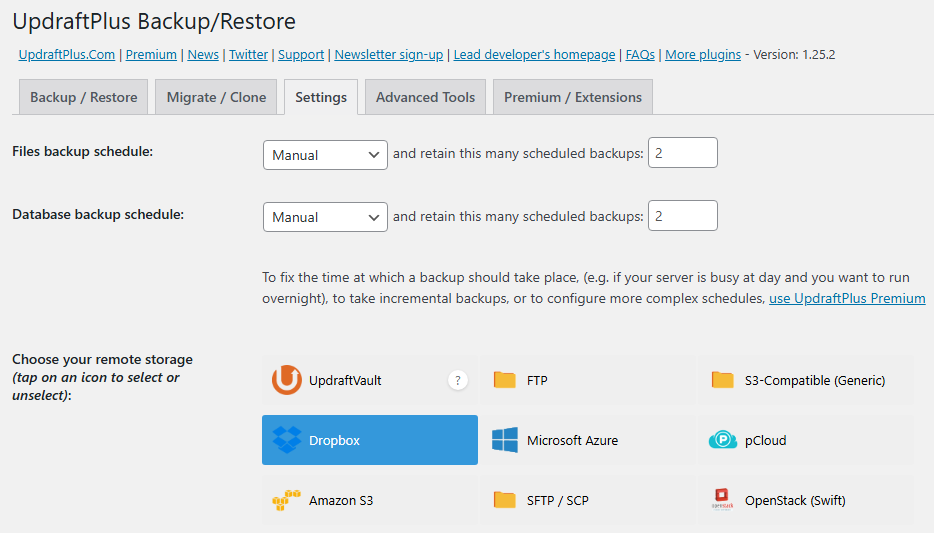
If your site size is small, Dropbox has the smoothest integration experience to keep backups.
3. Now set up a new WordPress site on your new host.
4. Install the UpdraftPlus plugin and connect it with Dropbox.
5. Head to the Backup/Restore tab and hit Rescan Remote Storage under the Existing Backup section.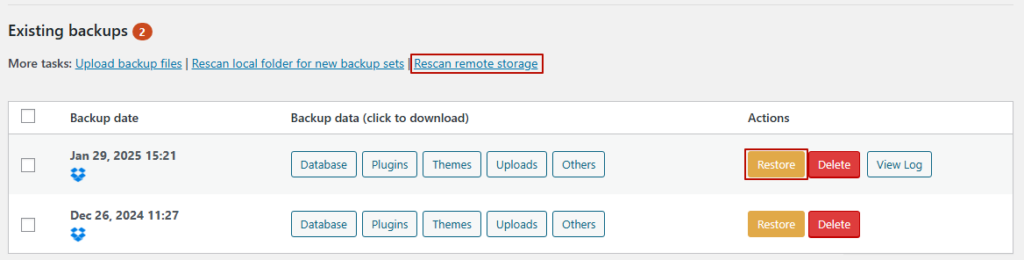
6. You will see your backup and click restore.
7. Tick all options and start the restore process.
Please wait 2-3 minutes. After the process,
You need to log in again.
Solution To Fix All-in-One WP Migration Exporting Database Stuck
1. Clean Up Disk
If your export progress has been stuck somewhere or at 100%, it is very likely that your disk has become full.
It is a common mistake with shared hosting. You can now take some beneficial action to clean up your disk.
- Install WP Optimize plugin and clear post revisions, auto-drafted posts, trashed comments, etc.
- Delete unused plugins and themes.
- Delete previous backup files from file manager
- Clear error log in root folder
- Delete unused videos, audios and images from media gallery
- Clean emails
If the problem persists, the server timeout could be to blame. It should be increased.
If you are still facing issues while migrating, let me know in the comment box. We will be pleased to help you.
FAQ
1. Why does All in One WP Migration get stuck during import?
The most common reason is a limitation in your hosting environment. Large site sizes, low PHP limits, slow networks, or plugin conflicts usually stop the import midway. Sometimes the plugin hits its own upload limit, especially on the free version. If you are on shared hosting, expect timeouts because the server cannot handle heavy operations for long. Fixing these limits or switching to a more flexible server usually solves the issue instantly.
2. How do I increase the upload size for imports?
The plugin places a strict cap on how much you can upload, which is why imports stall around the 250 MB to 500 MB mark. You can raise this limit by editing the constants file inside the plugin. Search for the file called constants.php and place the updated rule right under the developer email line. This quick trick bumps the upload limit up to 20 GB. If nothing changes afterward, you must increase server level limits from the PHP settings inside your hosting panel.
3. Why does my import freeze at 100 percent?
If the process stops at exactly 100 percent, your server is likely out of disk space. Shared hosting plans often fail here because they keep storing old backups, logs, and unused files. Clean your disk using WP Optimize, remove unused themes and plugins, clear the error log, and delete old backup archives. Once free space is available, run the import again and it will complete smoothly.
4. Can other plugins cause the import to freeze?
Yes, plugin conflicts are very common. Security plugins, caching plugins, backup tools, or aggressive speed optimization plugins can interrupt the import process. Disable every plugin except All in One WP Migration and attempt the import again. If the process works perfectly, reactivate plugins one by one to identify the troublemaker. Updating your WordPress and PHP version also prevents many unexpected conflicts.
5. What should beginners do if imports keep failing?
If you are new to WordPress and do not want to touch server settings, the simplest path is using a beginner friendly plugin like UpdraftPlus. Connect the plugin to Dropbox or Google Drive, take a backup on the old site, and restore it on the new site. It requires zero technical steps and works smoothly for small to medium sized sites. You only need to click scan and restore, and the plugin handles everything in the background.

Ravi Kumar is a Server Performance Analyst with over 4 years of experience benchmarking cloud infrastructure. He has optimized and stress-tested over 150+ websites, digging deep into uptime, disk latency, and CPU performance. Whether you’re looking for a free trial or a high-performance production server, Ravi uses real-world data to help you find the perfect host.
Good overview, but I think it’s important to mention that sometimes the issue goes deeper than what’s on the surface. Increasing upload limits and optimizing databases are great first steps. However, if you’re consistently running into these issues, it might be time to evaluate your hosting service’s capabilities or even the efficiency of your site’s theme. Also, always make sure your PHP version is up to date; it can significantly impact performance.
Thanks for the insight JD. How do I check my PHP version?
Hey Mickey, you can usually check and update your PHP version from your hosting account’s control panel. Look for a section named ‘Software’ or ‘PHP Version Manager’. If in doubt, your host’s support team can guide you through the process. Always back up your site before making changes like this!
This is just the guide I was looking for. Had no idea plugin conflicts could cause such headaches. Going to try disabling some plugins and see if that fixes my import issue. Thanks for the actionable advice, Ravi!
Hey there, I got tripped up at the part about increasing server upload limits. Is this something I can do from the WordPress dashboard, or do I need to tweak things on my hosting site? Not super techy here, so any simplification is apreciated. Thanks!
Really appreciate this article, Ravi Kumar! Ran into the export stuck issue more times than I’d like to admit. Found out the hard way that optimizing the database before attempting an export can save a ton of headache. One thing I’ve noticed, not mentioned here, is that using a staging site for larger exports can also be a game changer. Besides that, the cleanup tip you gave is solid. Keep this content coming!
hey Emmett, what’s a staging site? sounds like something I might need to look into. got any tips on setting one up?
hey there, just wanted to drop by and say a huge thanks! the part about cleaning up disk space before exporting was a game changer for me. been dealing with export issues for a client and nothing seemed to work till I stumbled on your post. totally made my day easier. Keep up the great work, Ravi Kumar!
lexi_thomson, do ya reckon that’d work for super big sites too? got this massive project and it’s just stuck at 0%. killin me here!
for sure, peterquills! big sites need more prep, like optimizing your database and maybe manually handling some of the files. give it a go and lemme know how it turns out.
nice breakdown on sorting the stuck import, ravi kumar! increase upload limit and server upload limit points are spot on. had to tinker with my server timeout settings to fix mine. it’s trial and error but worth it. always looking for these life-saving tips!
so ive been at this importing nonsense for hours now and its like watching paint dry. increased the so called upload limit and its still stuck. isn’t this plugin supposed to make life easier? ravi kumar, this guide feels incomplete, what now? gotta say, pretty disappointed here, thought it’d be a breeze.
hey, so like i was tryin to do the whole export thing with my site, right? and its like totally stuck. even tried that thing where you up the limit but nah, no dice. do ya think it could be cuz of my servers timeout deal. also ravi kumar, got any idea if its safe to mess with that stuff without breaking everything? thanks a load, man.
yo, garyt, upping the server time out can help but gotta be careful not to overdo it. your hosting provider might help if you’re unsure. always back up before you try somethin like that, just in case, ya know?
Everytime I try to fix stuff myself, it’s always a disaster. But your guide on the server timeout thing gave me hope. Tried it, messed up, but learned a lot. So, thanks, I guess?
hey so i was reading about the clean up disk part and im kinda lost. like where do i even start with that? do i need special tools or what? help pls!!
okay, i tried everything, listed here, and nothing’s working, maybe it’s a sign, i should give up on my site, thoughts anyone?
Oh wow, another revolutionary article telling me to increase my upload limit. If only I had thought of that. Here’s a thought, how about a real solution for once?
this tech stuff so hard man, but ur article helps a bit. Cleanup disk was good idea but how do I do it lol?
Thanks for the uplift, Ravi! Your guide on dealing with the import stuck made my day. It’s amazing how a little tweak like increasing the server timeout can do wonders. Cheers for helping us out!
i dunno bout this, like why my site gotta be so complicated to move? aint there a button that do it for me lol. anyone got a easy fix for this???
I’m not convinced. I’ve tried these so-called solutions and still stuck with the exporting database issue. Seems like this plugin has its limits, no?
hello there, I was trying the alternative method cause nothing else worked and im not sure I did it right. Can someone explain it a bit simpler for a newbie like me?
Increasing server upload limit, huh? Next, you’ll tell me turning it off and on again fixes everything. In all seriousness, great tips, Ravi.
so i was tryin this all in one wp migration thingy n it just stops. founf ur piece on why it’s get stuck. tried the server time out didt work. What do i do now?????
Hey Mitch, it sounds like you might need to check for plugin conflicts as the article suggests. Deactivate other plugins and see if that helps!
hey ravi, nice article on WP Migration stuck issues. i tried upping my upload limit like u suggested but it’s still no go. anyone else got tricks to fix this?