However, DigitalOcean is known for smoothing user experiences. But what about their only pre-templated ticket-based support that has been unhelpful most of the time when a beginner gets stuck.
We also recommend moving to a better alternative like enterprise-grade Kamatera.
Before that, deleting the DO account properly is important to avoid any unwanted charges. Therefore, we will guide you in the post to get rid of the DO account easily.
Let’s get started.

Table of Contents
Unlock 5x More Performance
How To Delete DigitalOcean Account
If you’re a solo owner of your DO account, the deleting process is quite easy. But if you manage a team at DO, it requires taking some extra steps in order to abolish the account.
2. Delete all resources:
First of all, you must delete all active resources like Droplet, Database, etc., to stop any ongoing charges.
From the dashboard, navigate to the droplets. Click the three dots 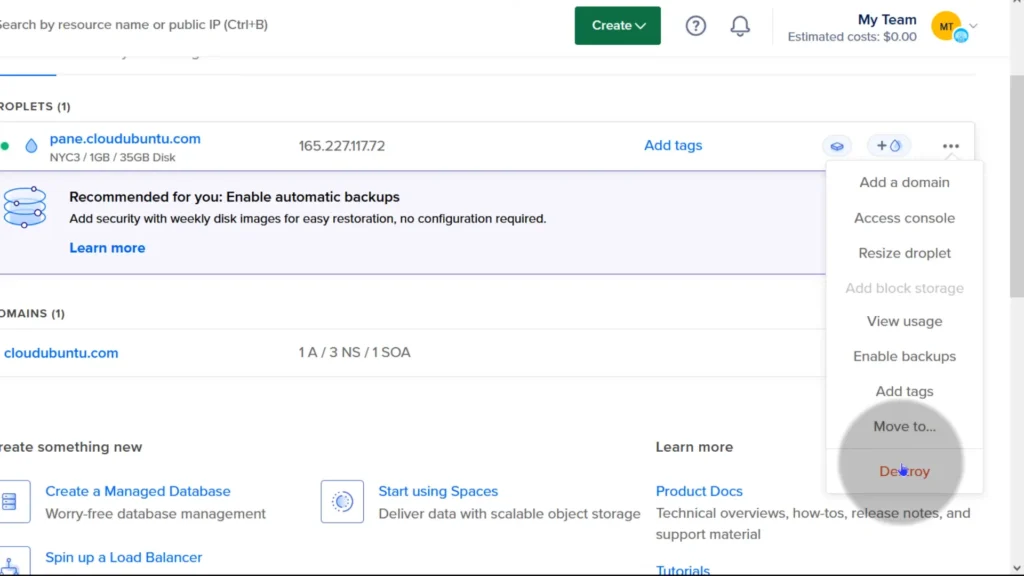
And choose Destroy. Hit Destroy this Droplet. 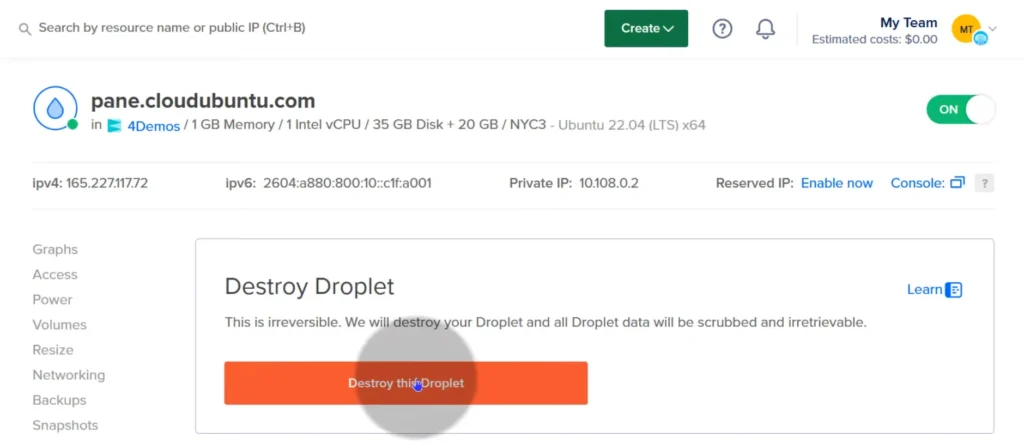
Select the attached volume also, 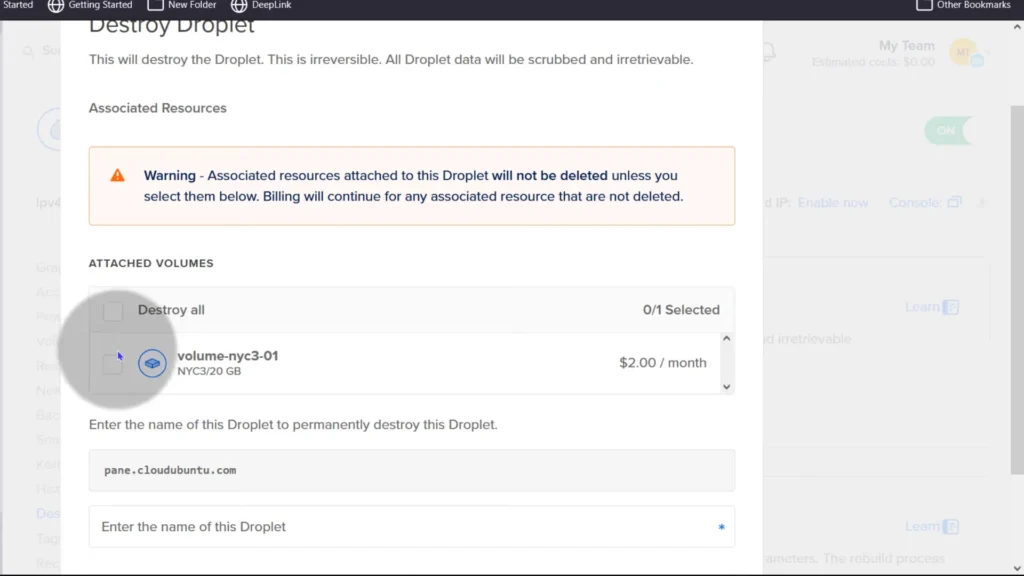
Enter the droplet name, 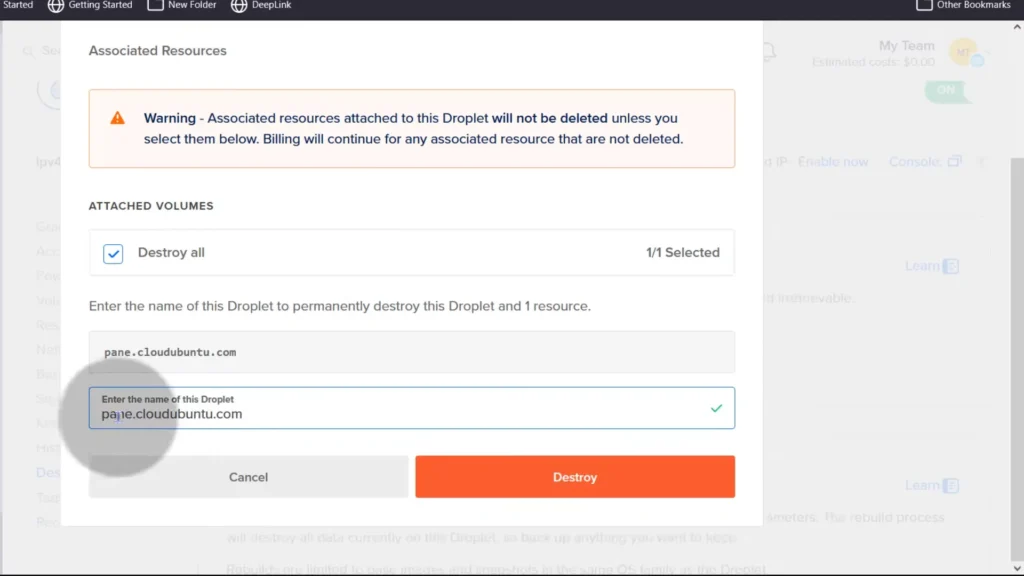
And finally press Destroy.
In a few seconds, Droplet will be deleted.
Repeat the process for all other resources like Load Balancer and Managed Database.
3. Settle the billing: Go to the billing section and ensure that all your invoices are paid and no pending charges remain. You will be billed for any usage during the current billing period, ever after deleting resources.
4. Delete Team:
- If you are the sole owner of any teams with additional members, you must either delete the teams or assign a different team owner.
- If you are an owner of a team that has at least one additional owner, you are automatically removed from the team when you deactivate your account.
- If you are the only member of a team, the team is automatically deleted when you deactivate your account.
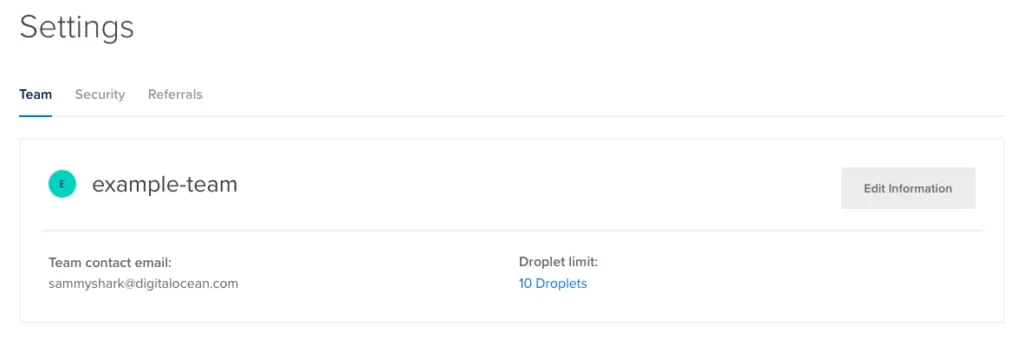
When you delete a team, you must destroy all resources on the team. The payment method associated with the team will be charged for the team’s final balance.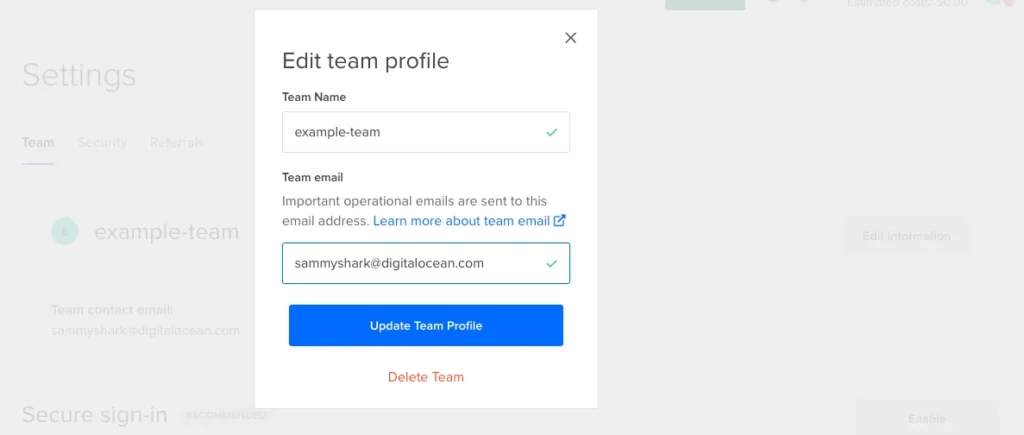
5. Close your account: Move to My Account by clicking on your profile icon. 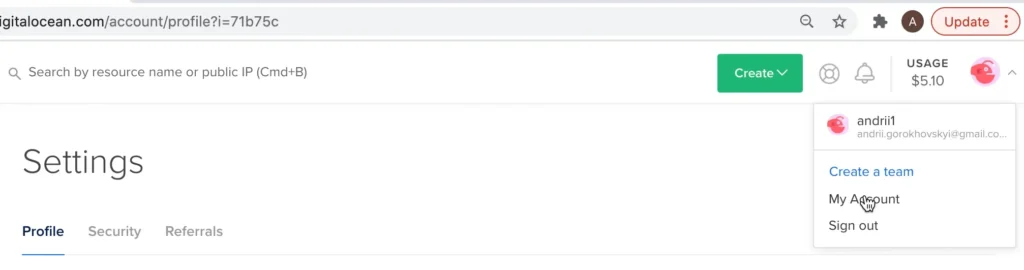 Hit Deactivate Account.
Check Purge my account data if you want to completely delete the account and don’t have any plan to reactivate it in the future.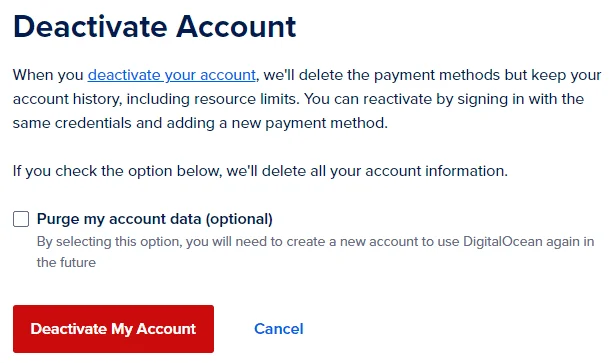
Press Deactivate My Account.
After confirming, your account will be deleted. You’ll receive an email from DigitalOcean confirming that your account has been closed and associated data is removed.
How To Get Refund From DigitalOcean
As DO follows a pay-as-you-go payment model, you pay only for the resources you have used. Therefore, DO has no refund policy.
Best DigitalOcean Alternative
Kamatera has done a tremendous job in recent years. They have heavily invested in improving their cloud server performance, security, and reliability.
We noticed the result-oriented changes in our independent test, as their server was able to achieve God-level 100% uptime, TTFB ~20 ms and 1 core VPS handled 10k users in real time.
Diagonal scaling is their core identity, and 100+ one-click apps assist beginners in launching their first web property on the cloud. These two features eliminate the need for developers and allow you to choose exactly what resource you need.
You will find 24 global data centers, a cloud firewall, DDoS protection, and disaster recovery management protecting you from the front.
Moreover, if you get stuck somewhere, their support on calls, email, and live chat is ready to help you.
FAQ
1. Can I delete my DigitalOcean account instantly?
No, you can’t delete it instantly. Before closing your DigitalOcean account, you must first delete all active resources such as Droplets, Databases, and Load Balancers. Once everything is destroyed, ensure all invoices are paid, then head to My Account → Deactivate Account. Only then will your account be permanently closed.
2. What happens if I forget to delete resources before deactivating my DigitalOcean account?
If resources remain active, DigitalOcean will keep billing you even if you attempt to deactivate the account. Charges continue until all services are destroyed. That’s why the first step before closing your account is wiping out every Droplet, attached volume, and managed service from your dashboard.
3. Will DigitalOcean give me a refund after deleting my account?
Unfortunately, no. DigitalOcean operates on a pay-as-you-go model, which means you’re billed only for what you’ve already used. Once your resources are deleted and invoices are settled, there’s no refund for unused credits or past payments.
4. I own a DigitalOcean Team. How do I close my account in that case?
If you manage a team, you must either:
- Delete the team entirely (after destroying all its resources), or
- Transfer ownership to another member.
If you’re the only member, the team is automatically deleted when you deactivate your account. If there are multiple owners, you’ll simply be removed once your account is deactivated.
5. What’s the best alternative to DigitalOcean if I want a smoother experience?
Many users moving away from DigitalOcean choose Kamatera. Unlike DO’s ticket-based support, Kamatera offers 24/7 live chat, email, and phone support. Their diagonal scaling lets you fine-tune server resources anytime, while 100+ one-click apps make life easier for beginners. Plus, in independent testing, Kamatera showed 100% uptime, 20 ms TTFB, and the ability for a single-core VPS to handle 10k real-time users—making it a stronger enterprise-grade choice.
More Account Cancellation Guide
- How to Delete Hetzner Account & Get Refund Easily
- How To Delete Scalacube Account + Get Instant Refund
- How to Delete Netcup Account & Get Refund Easily
- How To Delete Vultr Account & Get A Fast Refund
- How To Delete UpCloud Account + Get A Instant Refund
- How To Delete Linode Account + Get An Instant Refund
- How to Delete IONOS Account & Get Refund Easily
- How to Delete Contabo Account & Get Refund Easily

Ravi Kumar is a Server Performance Analyst with over 4 years of experience benchmarking cloud infrastructure. He has optimized and stress-tested over 150+ websites, digging deep into uptime, disk latency, and CPU performance. Whether you’re looking for a free trial or a high-performance production server, Ravi uses real-world data to help you find the perfect host.