Got havoc 502 Bad Gateway Error?
That implies that some process is halted in your server backend.
It can be due to a lack of resources, poorly coded plugin conflicts, unreliable software updates, and malware infections.
Typically, a shared hosting company allows only a certain number of processes to run on the server backend as long as they cross the limit.
Kill scripts start to kill the processes, and websites start encountering the error.
GoDaddy is one of them, which is infamous for throttling resources. That’s why enormous users get 500 series errors and they have shared their bad experiences in long articles.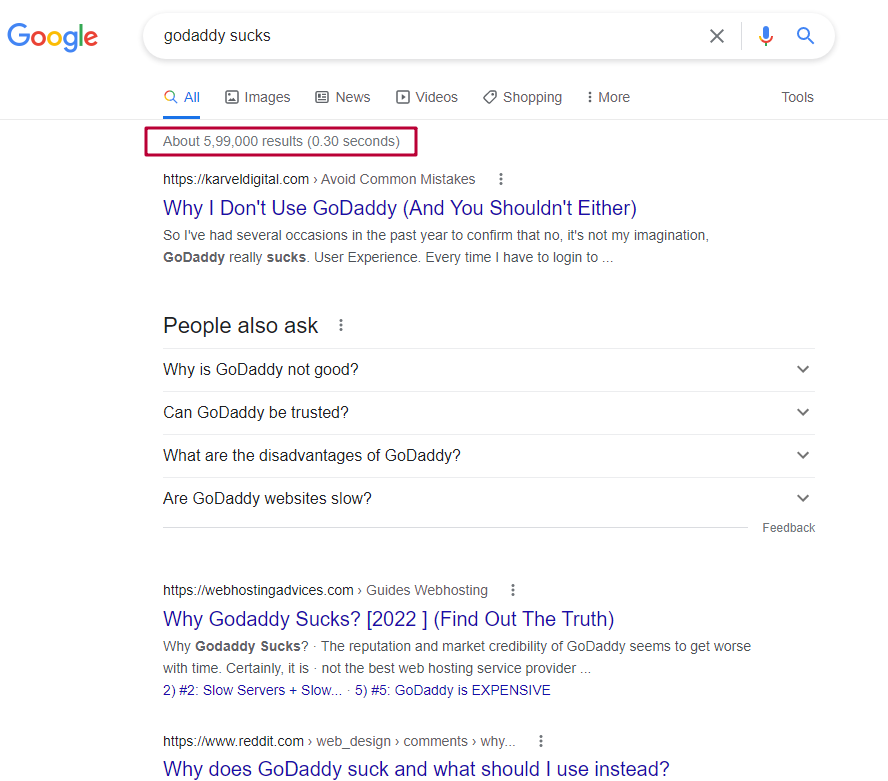
Sometimes misconfiguration of CDN or incorrect DNS records leave the site in question. Let’s plunge into solutions.
Table of Contents
How To Fix GoDaddy 502 Bad Gateway
Got smacked with a 502 Bad Gateway on your GoDaddy WordPress site? It’s a sign something’s gone wrong between your server and the browser. Most likely culprits: overloaded servers, buggy plugins/themes, DNS misfires, or GoDaddy’s infamous “kill scripts.”
Here’s the fix rundown:
- Quick checks: Reload page, try incognito, clear browser cache, or check site status on isitdownrightnow.com.
- Common causes: Server overload, outdated PHP processes, misconfigured DNS or CDN, or clashing plugins/themes.
- Tech tweaks: Restart PHP via GoDaddy cPanel, increase PHP timeout, check error logs, and flush DNS.
- Heavy-duty fixes: Disable all plugins/themes via FTP to detect conflicts, clean up your WP database, and control heartbeat API.
- Final rescue: If GoDaddy keeps choking your site, migrate to a better host like Cloudways—fast, scalable, no kill scripts.
Still stuck? Switch to Cloudways’ free 3-day trial—no credit card needed—and experience stress-free WordPress hosting.
1.Reload Page
A transient network error or server overloading can invoke the error. Try to reload your page. You can try it in the incognito tab, and it will be better.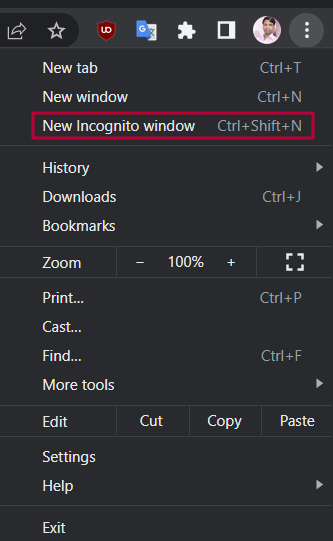
If it still doesn’t open, enter your URL at isitdownrightnow.com and check if it is just down for you or the world.
If it is for the entire world, then it’s a hosting-level issue.
2.Clear Browser Cache
Corrupted cache files can be a problem. Press CTRL+H in Chrome to open the history page and clean all cache.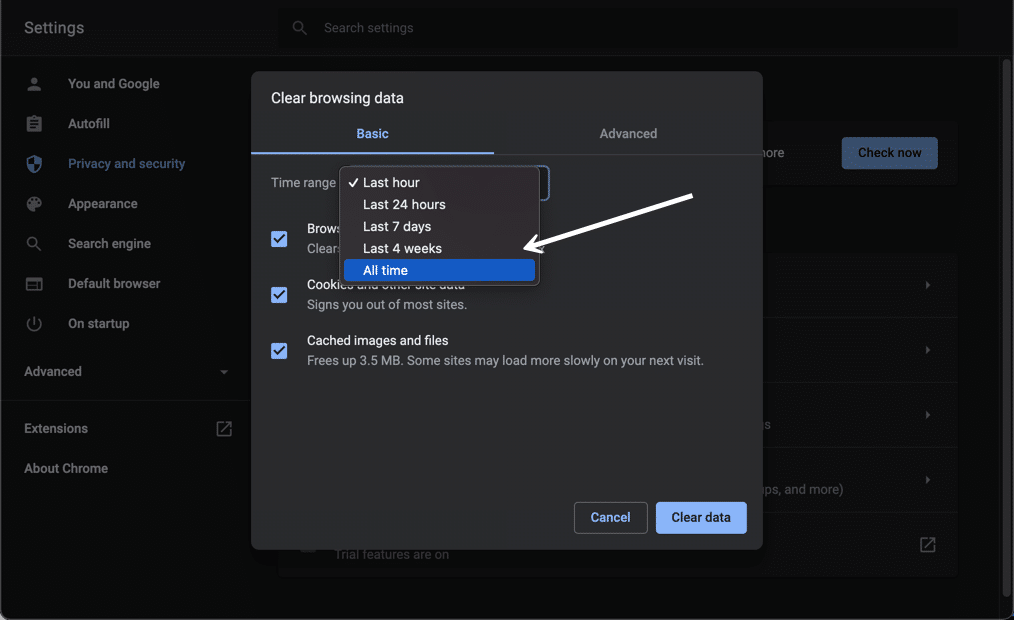
Now open your web page. The page should open. However, you can use other browsers.
3.Fix Server Outage
Check your mail to see if Godaddy servers are under maintenance. Then, encountering a server outage is ephemeral.
But Godaddy does not have any plans like this. Then it could be due to a power failure or any server device failure.
You should contact the support team.
4.Unload Overloaded Server
Under DDoS attacks, the server goes overloaded. Use Cloudflare and secure it. It is a temporary issue if it occasionally occurs.
But regularly facing server overloading is a big problem and a clear indication of high usage of CPU, RAM, or bandwidth capability.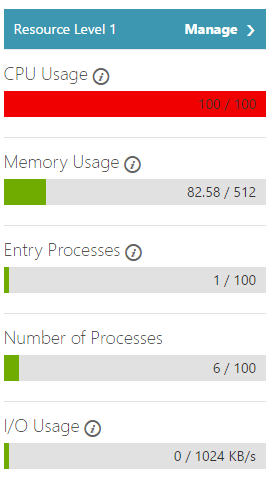
There can be numerous reasons; you can find them in the detailed guide.
5.Correct DNS Record
Recently, did you change servers or web hosting companies? There might be a high probability of an incorrect DNS record.
That’s why a browser couldn’t find the correct IP address of the new server to fetch data and ended up in question.
Do recheck your DNS record. If it is possible, fasten DNS propagation.
Don’t forget to clear up the old DNS cache on your computer, as it blocks getting a new DNS record.
For Window PC
(1)Open Command Prompt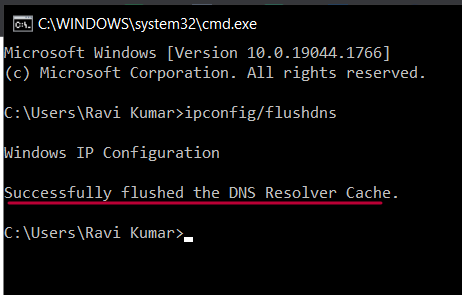
(2)Run code and hit enter
ipconfig/flushdns
For Mac
(1)Run terminal.app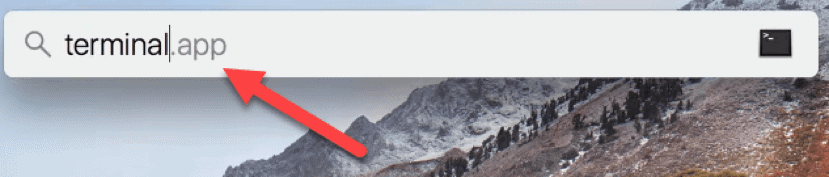
(2)Type sudo killall -HUP mDNSResponder and hit return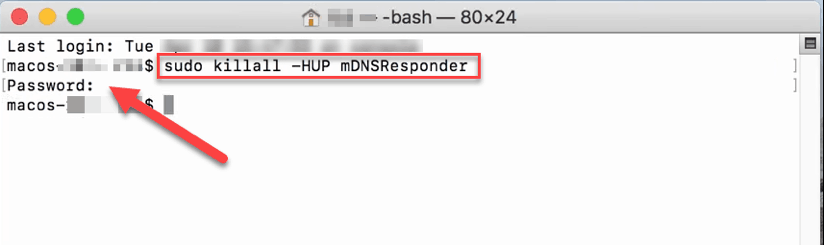
(3)Enter the Admin password and hit return
6.Check Your Firewall
If you have deployed any security plugins that enable WAF, please disable them.
Sometimes firewalls block essential server ports or processes due to misconfiguration or buggy updates.
7.Check Your CDN
CDN boosts data transfer and server response time between the browser and the origin server.
But a misconfiguration can lead to a severe situation. So switch off your CDN.
If the website is working fine, contact the CDN support team.
8.Restart PHP
If some PHP processes stop working, you need to restart PHP. Unfortunately, there is no restart PHP button in the GoDaddy cPanel. But there is a trick to do it quickly.
(1)Login to GoDaddy cPanel
(2)Under the Software section, Select PHP Version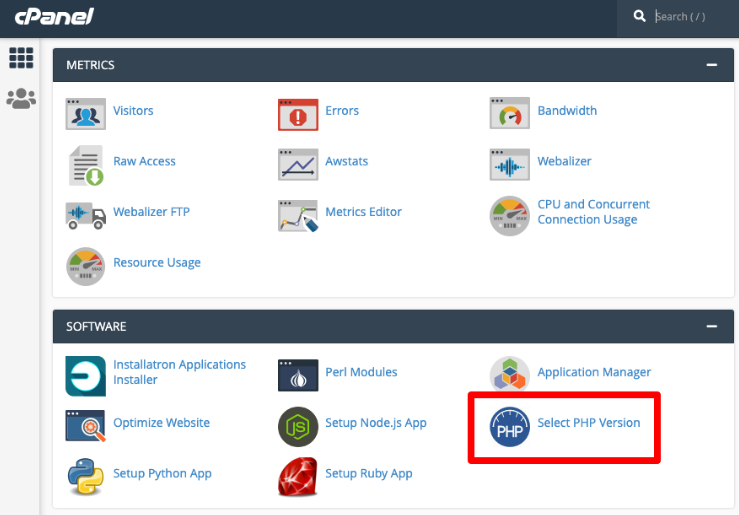
(3)Change Your PHP Version.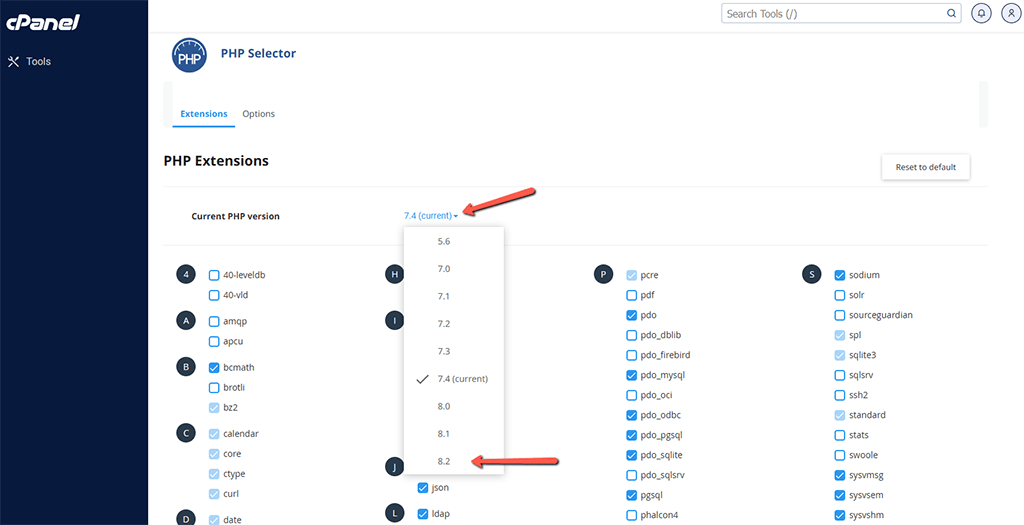
It will restart PHP and change the PHP version. You can roll it back in a few minutes.
9.Set PHP Timeout Longer
If a PHP process runs for longer than the max_execution_time or max_input_time, PHP timeouts will occur.
Generally, the timeouts occur while you’re uploading heavy files to a WordPress site.
The web host sets the values, and it varies as per the web host and plan. In shared hosting, it’s too tiny. So contact the support team and upgrade your plan.
10.Check Chrome Extensions
Sometimes, some browser extensions, primarily ad blockers, stop the website from rendering.
It calls an error. In rare cases, old browsers can reiterate the issue.
So disable your extension, upgrade your browser and reload again.
11.Check Error Log
Go to the file manager of your website through cPanel. Check error logs.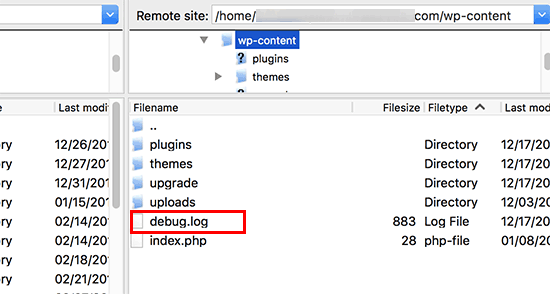
If it is not available, paste the following code to the WP-config.php file.
define( 'WP_DEBUG', true );
define( 'WP_DEBUG_LOG', true );
define( 'WP_DEBUG_DISPLAY', false );
Now access the logs file in /wp-content directory. You can know the precise reason for the occurrence.
12.Check if Plugin Conflicts
Plugin conflict is common due to rogue code or buggy updates. It can hamper server processes.
You should find the culprit one.
(1)Connect server through FTP connection
(2)Go to public_html > WP-content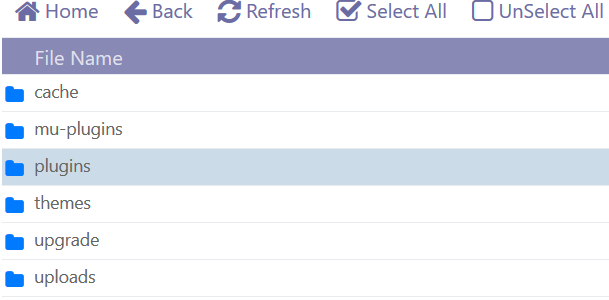
(3)Now rename plugins folder to plugins.old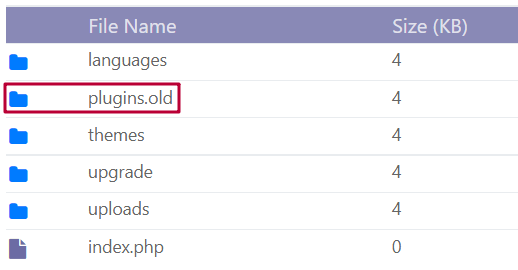
It will disable all plugins. If the website is working fine, activate the plugins one by one and reload the website at every activation.
Before jumping into it, don’t forget to roll back the plugin folder’s name.
13.Check Theme Compatibility
Like plugins, a theme can also get buggy updates that can crash server processes. You can fix it with the detailed guide.
14.Clean Your Database from Trashes
Install WP-Optimize plugin, clear up your database tables, and don’t forget to remove data from deleted plugins. 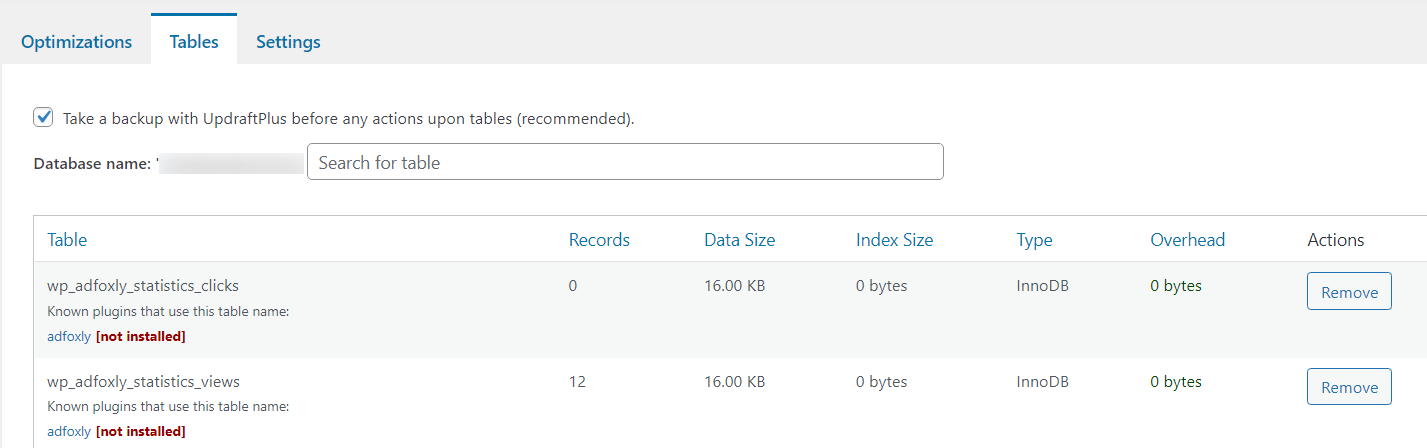 A lot of trash slows down the server, and in rare cases, it can choke the server.
15.Control Heartbeat and Disable Useless Features of WordPress
Install Perfmatters and disable various useless features of WordPress to lite up. 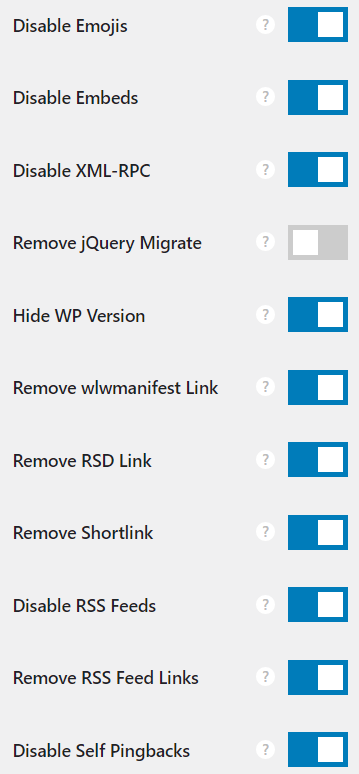 You can see the pic. I am sure you might not use them. But these add extra load.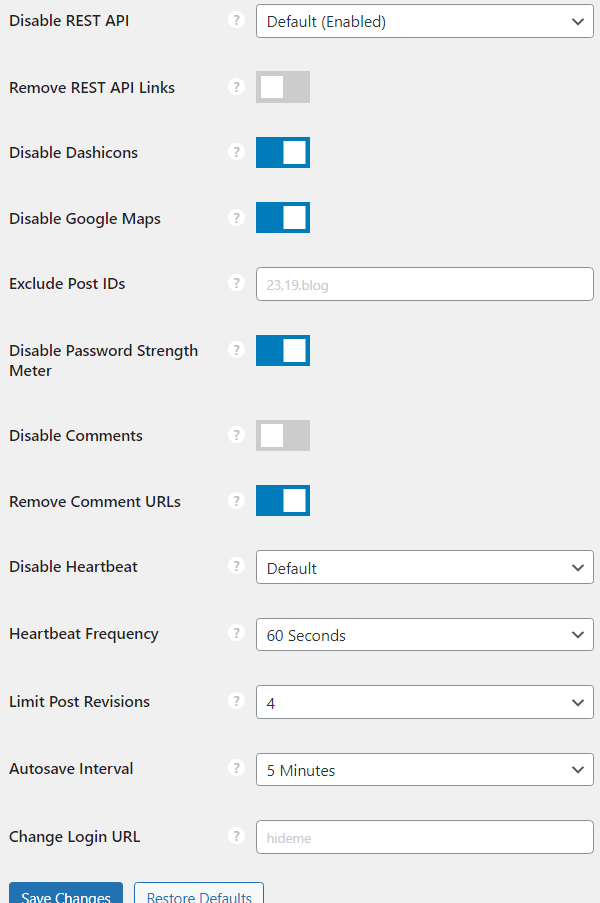
Set control heartbeat per 60 seconds only for editing or publishing posts.
16.Choose Cloud Hosting
The issue is prevalent on GoDaddy as many users report it regularly. Just search ‘502 error’ or ‘bad gateway’ on Twitter.
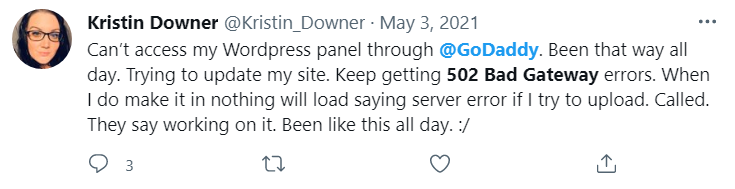


The reasons are clear-cut.
(1)Kill Script
(2)Low Resources
(3)Outdated Software
(4)Sluggish Infrastructure.
They implement a ‘kill script’ to kill any query, script or process that will take a long time to execute.
They do this because of tiny resources and don’t want to impact other users on the same server.
So they halt your website process.
In that case, the best step is to move to Cloudways, a managed cloud host that offers World’s best cloud infrastructures to host your site with a click.
With their intuitive dashboard, you can manage your website as you do at cPanel.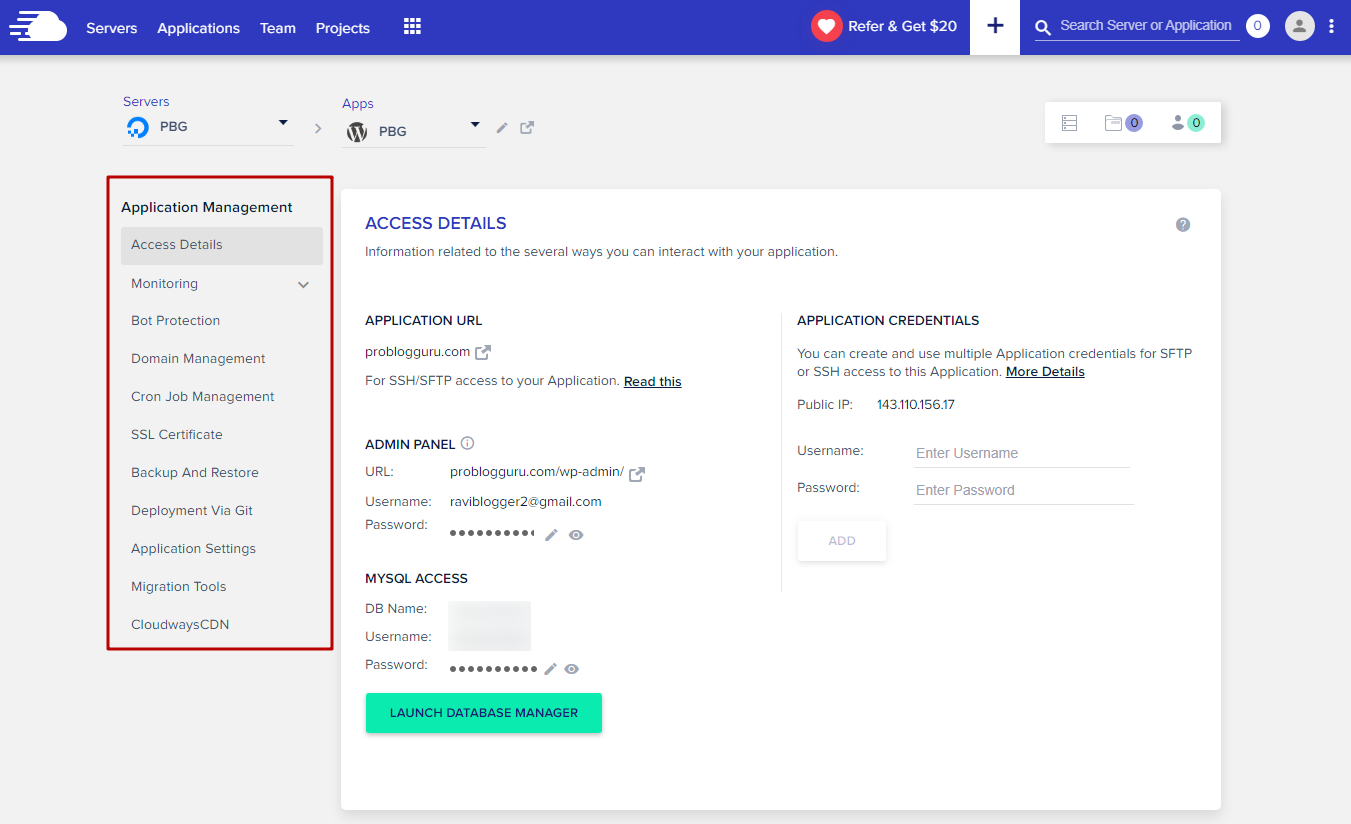
The server is made of a fantastic mixture of NGINX, Apache, Object Cache Pro and Varnish. That boost speed of WordPress site like Elon Musk’s rocket.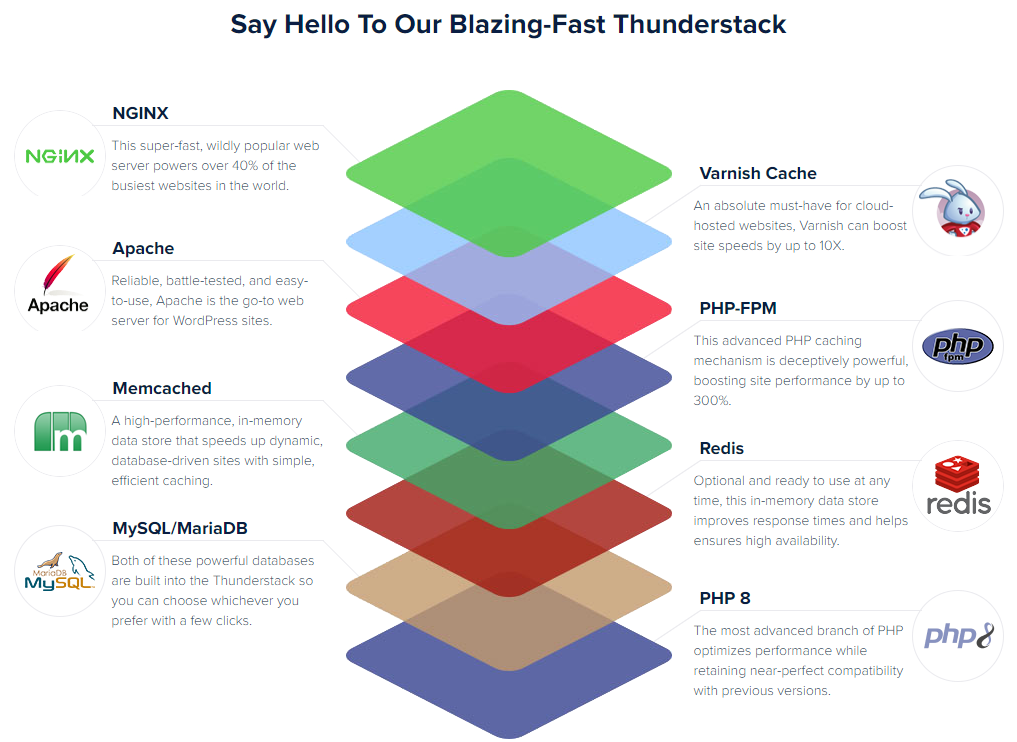
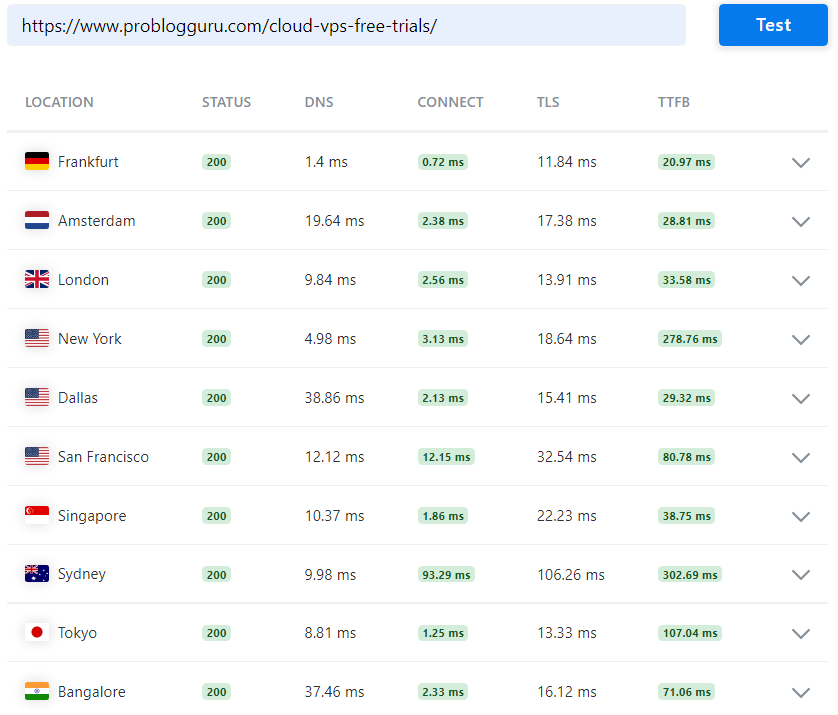
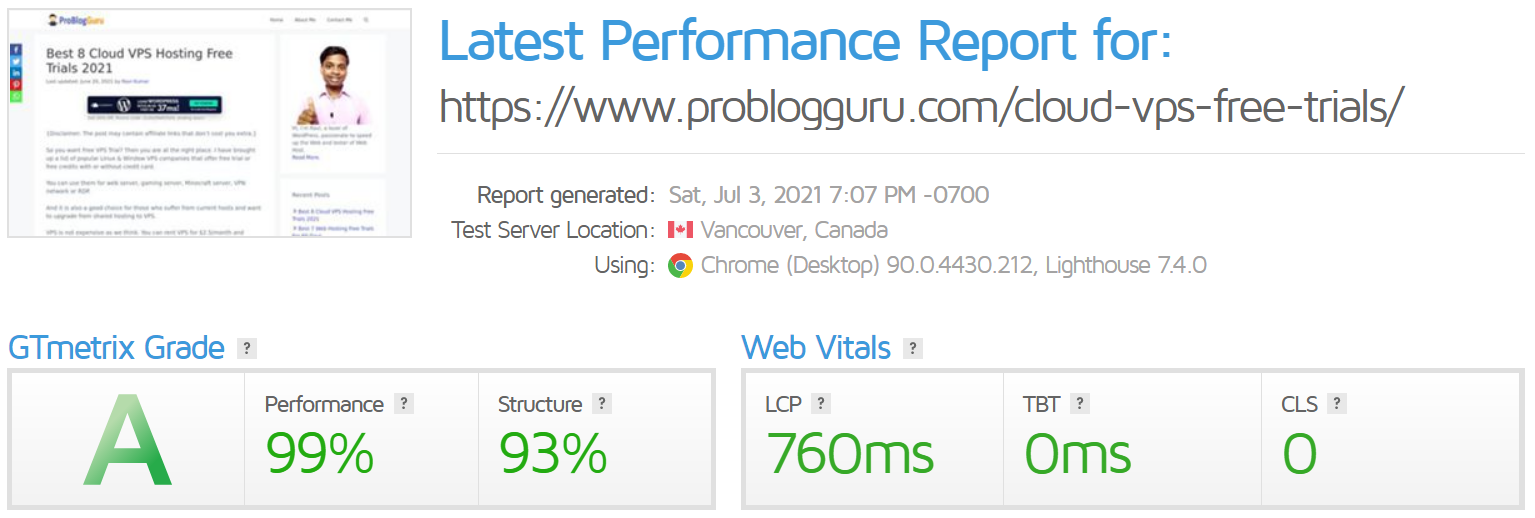
Check mine,
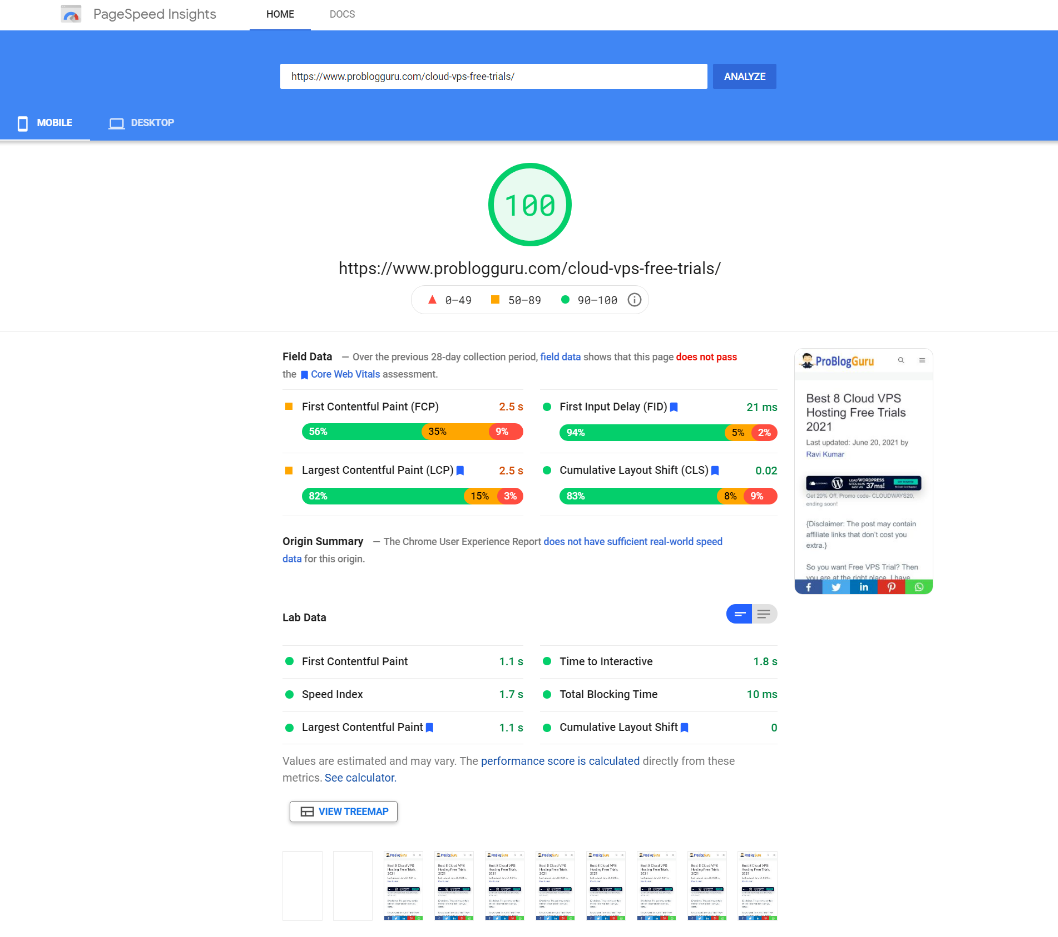
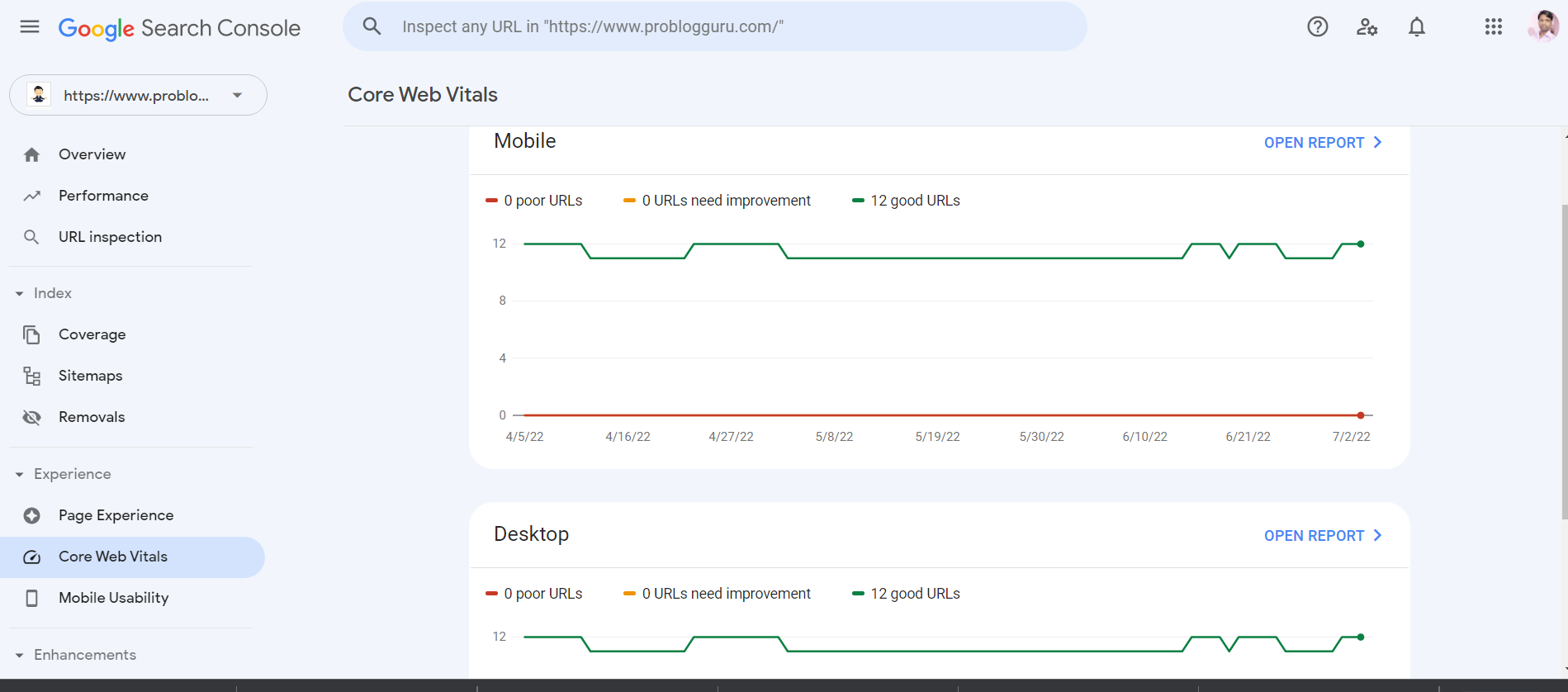
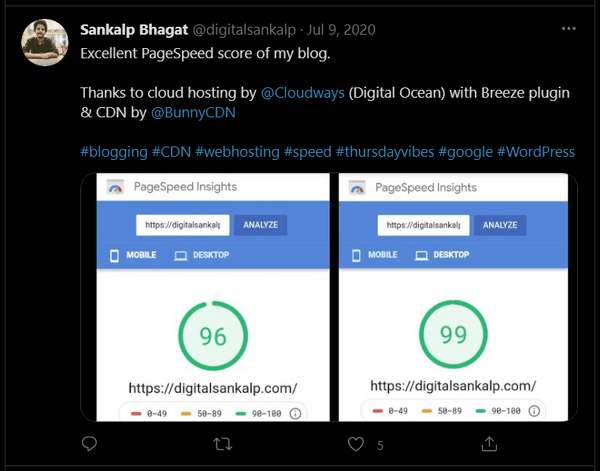
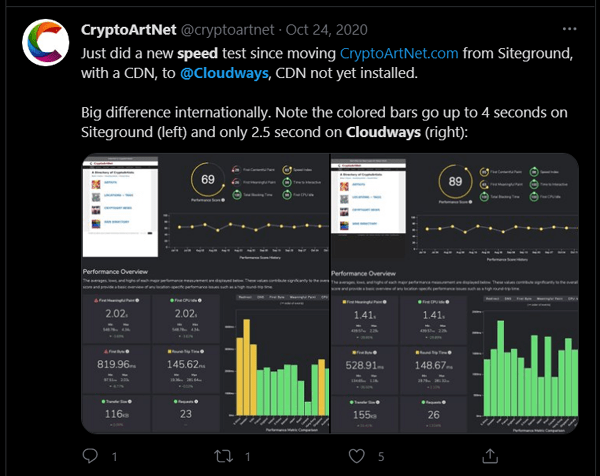
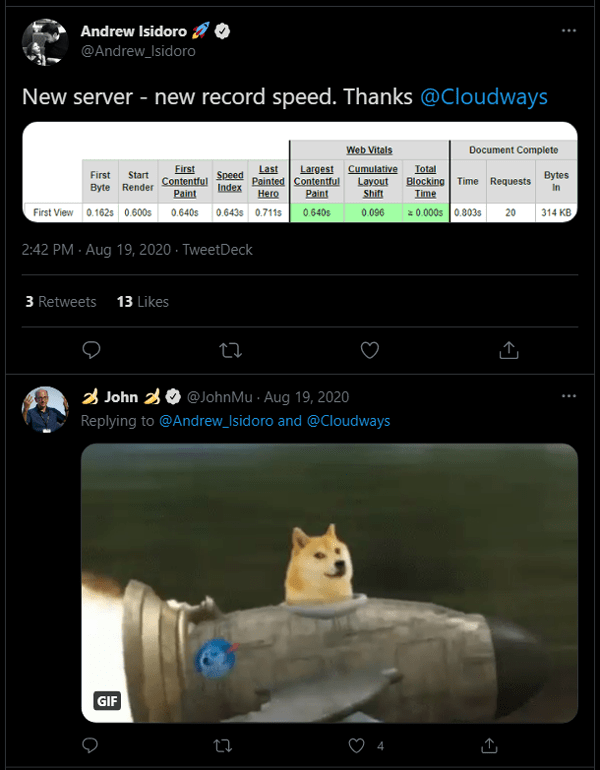
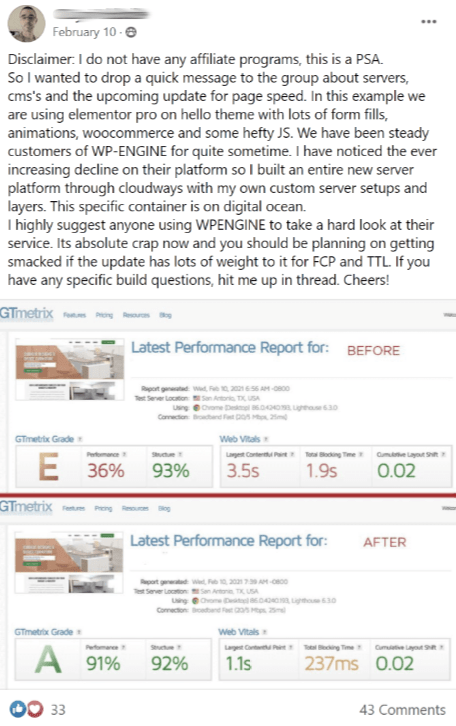
proudly hosting since 2019 and cleared all speed requirements of Google like Core Web Vitals easily.
As a result, the page is ranking at the top in SERP.
Why Choose Cloudways
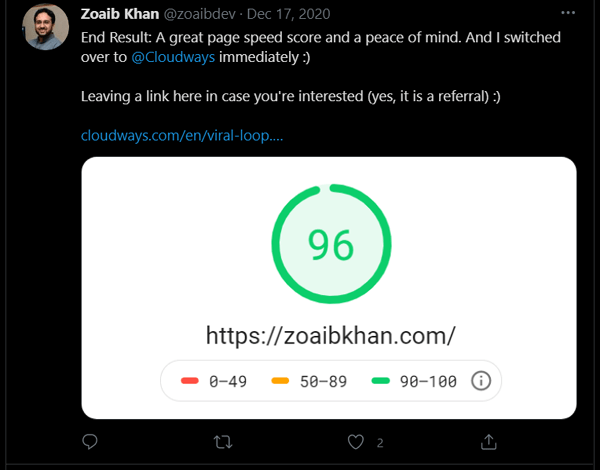
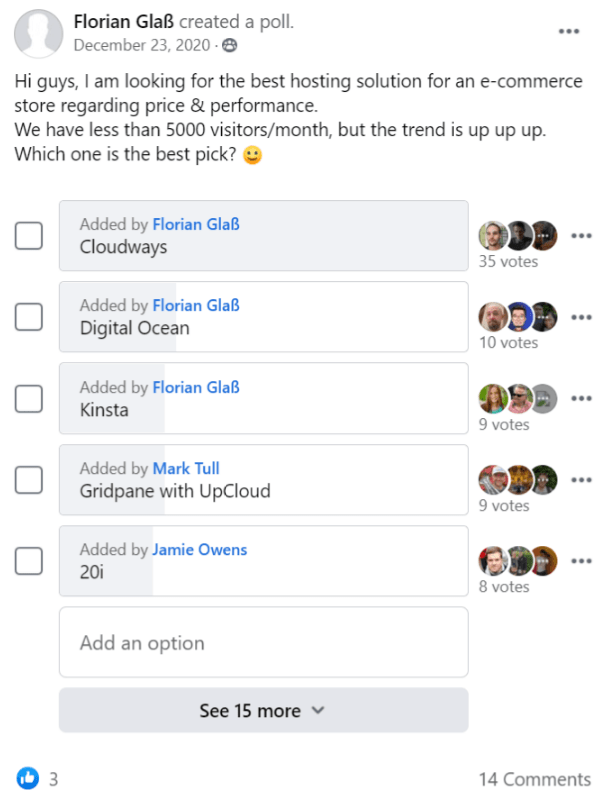
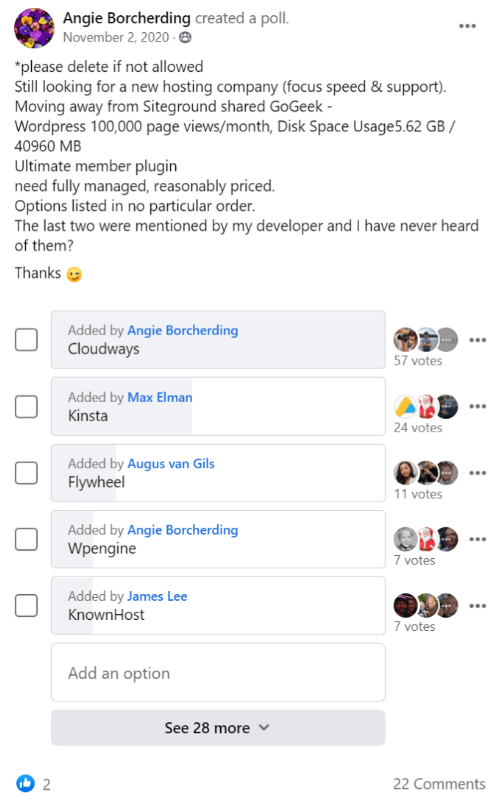
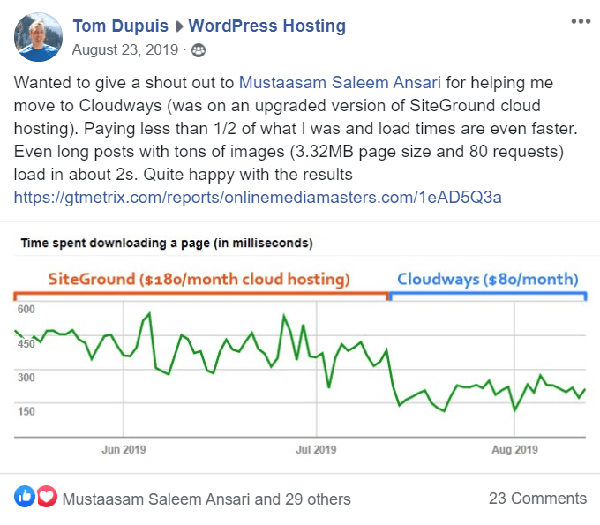
Still hesitating, test a free drive as they come up with a free 3-day trial offer without a credit card.
FAQ
1. What does a 502 Bad Gateway error on GoDaddy actually mean?
A 502 Bad Gateway error means your server failed to complete a request because something broke in the backend. This often happens when the server is overloaded, PHP processes freeze, plugins conflict, or GoDaddy’s kill scripts terminate long running tasks. Since shared hosting offers very limited resources, even small spikes can trigger this error.
2. Can browser issues cause a 502 Bad Gateway error?
Yes, sometimes the problem is local. Corrupted browser cache, outdated extensions, or aggressive ad blockers can prevent pages from loading. You should clear your cache, disable extensions, try an incognito window, or test your site on another browser before assuming it is a hosting issue.
3. How do I know if the 502 error is caused by GoDaddy’s server?
You can check by using isitdownrightnow.com or similar tools. If your site is down globally, then it is almost certainly a GoDaddy server issue. You can also review support emails for outages or maintenance. If there are no notices, then it could be caused by server overload or kill scripts throttling your site.
4. Can plugins or themes trigger a 502 error on GoDaddy?
Absolutely. Bugs, outdated code, or conflicts between plugins and themes can cause PHP processes to get stuck. When those processes exceed limits, GoDaddy kills them, leading to 502 errors. You can identify conflicts by disabling all plugins through FTP and reactivating them one by one. Themes can also cause the issue, so testing with a default theme helps.
5. What role does DNS or CDN misconfiguration play in 502 errors?
A wrong DNS record, incomplete DNS propagation, or outdated local DNS cache can break connectivity, resulting in a 502 error. CDNs like Cloudflare may also misbehave if settings are incorrect. Turning the CDN off, flushing DNS on your computer, and verifying DNS records usually fixes this scenario.
6. Should I move away from GoDaddy if 502 errors keep coming back?
If the issue keeps returning even after fixing plugins, DNS, cache, and PHP settings, then yes. GoDaddy is known for resource throttling, kill scripts, and outdated server environments. Platforms like Cloudways provide auto healing servers, modern stacks, high performance caching, and zero resource throttling. Many users report instant improvements after migrating.
More Fixes
- [Solved] 500 Internal Server Error WordPress GoDaddy [2026]
- [Solved] 503 Service Unavailable WordPress GoDaddy [2026]
- Best 28 Ways To Speedup GoDaddy WordPress Site Slow [2026]
- [Solved] Godaddy Error Establishing a Database Connection in WordPress

Ravi Kumar is a Server Performance Analyst with over 4 years of experience benchmarking cloud infrastructure. He has optimized and stress-tested over 150+ websites, digging deep into uptime, disk latency, and CPU performance. Whether you’re looking for a free trial or a high-performance production server, Ravi uses real-world data to help you find the perfect host.
had no clue about CDN affecting my site. always thought it was just for loading stuff faster not a source of errors. Ravi’s article really opened my eyes, guess I gotta check mine now huh. anyone knows a simple guide to CDN settings, all this tech stuff is like gibberish to me lol
Hey Ravi Kumar, great piece on tackling the dreaded 502 error with GoDaddy! I had a run-in with this issue on a client’s site last month, and clearing the browser cache was a quick fix indeed. However, I found that adjusting the PHP timeout settings made a significant difference for sites with heavy plugin use. It’s a delicate balance, though, as setting it too high might mask underlying performance issues. Has anyone else had success with the PHP adjustments, or found an optimal timeout setting?
Ellie, I’m curious about the PHP timeout settings. What’s the starting point you’d recommend for websites with a moderate amount of traffic? Trying to get a handle on this for my own projects.
Hey Jordan, great question! I typically start with a 30-second timeout for medium-traffic sites and adjust from there. Monitoring the site’s performance is key to finding that sweet spot. Hope that helps!
hey there Ravi Kumar, just read through ur piece on the whole 502 bad gateway jazz with GoDaddy… gotta say it’s pretty in-depth. so i was trying to get my site back online & stumbled at the PHP restart part. is it like just turning it off and on again, or do i have to get into the code? and what’s the deal with setting the PHP timeout longer, how’s that gonna help? I’m not really a code guy yet, still wrapping my head around this. thanks for breaking it down though, been kinda lost with all this server stuff.
Hey Marty, jumping in here to help out. Restarting PHP is sometimes needed to apply changes or fix issues. It can often be done through your hosting control panel, no coding needed. For the PHP timeout, making it longer can prevent timeouts for scripts that take longer to execute, especially on resource-heavy sites. Hope that clears it up!
i heard bout checking chrome extensions, but like how do you even do that? anyone knows? kinda lost here, lol
Okay, I get that these are supposed to help, but aren’t some of these just basic upkeep for any website? Like clearing caches and checking DNS records should be a part of regular maintenance already.
This article was super helpful, thanks a lot! I didn’t know about half of these fixes, really opened my eyes lol.
okay, like checking the error log, how do you even do that? need some steps here, this all sounds so complicated :/
Hey Lila, you can usually find the error log in your hosting control panel. If you’re using GoDaddy, it should be under the ‘Web Hosting’ section. From there, look for ‘Metrics’ and you’ll find ‘Error Logs’. Hope that helps!
Has anyone really had success with setting PHP timeout longer? Sounds like a temporary fix rather than getting to the actual root of the problem.
Actually experienced this 502 error just yesterday. I realized it was because of an overloaded server. Reducing the server load solved it for me. Sometimes, it’s the simplest things we overlook.
so i tried doing that thing where you clear the browser thing but like, where do you find the cache? i’m not good with computers lol, any help?
I really appreciate this guide, Ravi Kumar! Didn’t know about setting PHP timeout longer, gonna give it a try. Thanks for sharing 🙂
wow, ‘check your firewall’, like i haven’t tried that a million times. any other groundbreaking tips, Ravi Kumar? maybe try turning it off and on again?
ugh so i been trying to fix this godaddy 502 bad gateway all day, and like none of these are working. i cleared my cache, checked my dns settings, restarted php but nothing. maybe its just godaddy being bad idk. anyone else having the same issue or is it just me?
hey, i tried to clear the browser cache like u said but it didnt fix the 502 thingy. got any more ideas? maybe something not too technical? thx, Ravi Kumar