You see “Your Connection is Not Private” with the following error code on your GoDaddy site: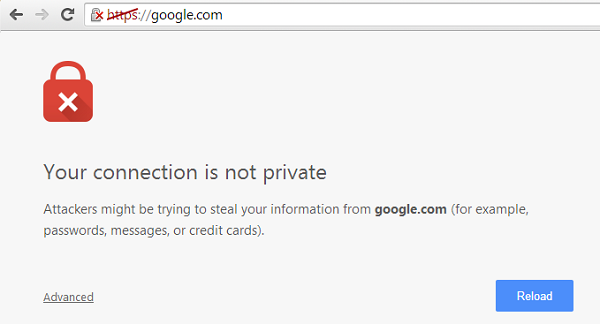
- err_ssl_protocol_error
- sec_error_revoked_certificate
- net::err_cert_authority_invalid
- net::err_cert_common_name_invalid
It means that the server is not capable of setting up an encrypted connection to securely transfer data to a browser.
There could be many reasons behind it-
- Expired SSL certificate
- Migrated to New Domain
- The computer doesn’t sync dates and times automatically.
- Mixed content
What Does Mean Your Connection is Not Private?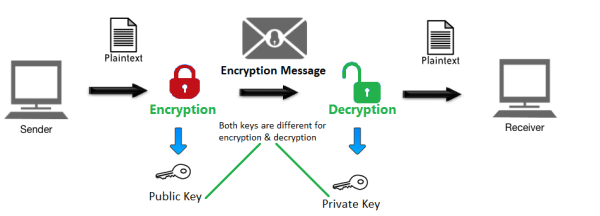
When a user tries to access a website through a browser. First, the server sends SSL certificate information with a public key. Browsers get it and verify it.

The server then sends a private key. The browser encrypts the data transfer with a private key, and the server decrypts the data with the same key.
It’s called an encrypted connection between the server and browser.
However, if the browser can’t validate certification information for various reasons, it causes the error.
After that, Chrome will display “Your connection is not private.”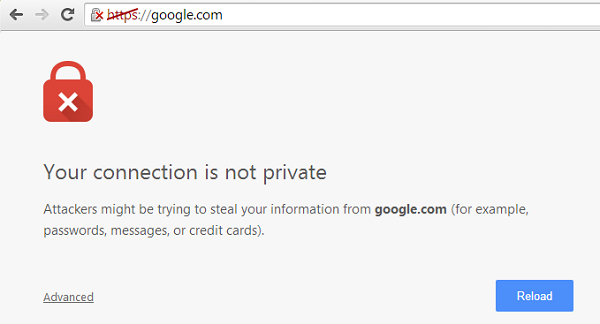
Mozilla Firefox: “Your connection is not secure.”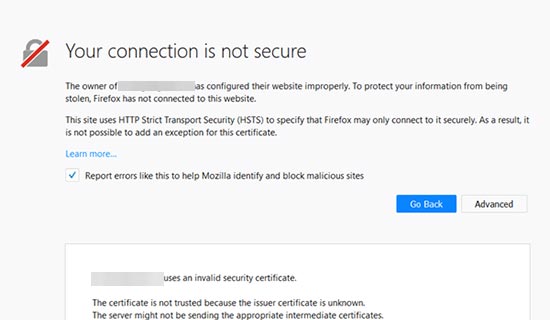
Microsoft Edge: “This site is not secure.”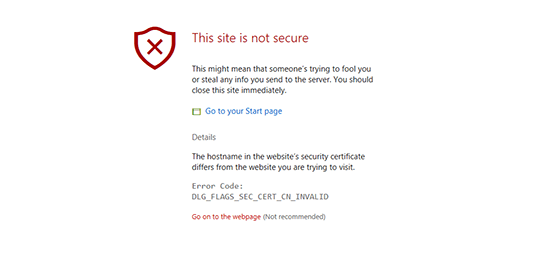
Now let’s jump into the solutions.
Getting hit with that frustrating “Your connection is not private” message on your GoDaddy site? That means your SSL handshake is broken—your browser can’t verify a secure connection. Typical culprits: expired SSL, misconfigured domains, outdated device clocks, or mixed content.
Common Errors You Might See:
- ERR_SSL_PROTOCOL_ERROR
- NET::ERR_CERT_COMMON_NAME_INVALID
- SEC_ERROR_REVOKED_CERTIFICATE
🔧 Quick Fixes:
- Refresh the page or use incognito mode.
- Clear browser cache (Ctrl + Shift + Del).
- Sync your PC’s date & time.
- Test your SSL with an online tool like SSL Labs.
- Check SSL expiration & revalidate if needed (especially after domain moves).
- Disable VPNs, antivirus, or browser extensions temporarily.
- Fix “mixed content” using the Really Simple SSL plugin.
- Ensure SSL is applied to both www and non-www versions of your domain.
- Add HTTPS redirection in .htaccess or via plugin.
- Avoid redirect loops by tweaking wp-config.php.
✅ Pro Tip: Always validate SSL after installation and set renewal reminders—SSL downtime kills trust and SEO.
1. Reload Your Page
When you see the SSL error, first of all, try to reload the web page. You can even try it in incognito mode, guest mode, or other browsers.
If the error is temporary, the website should work well.
2. Clean Up Browser Cache
If you have set up a long browser caching period, like 2 days, 1 month, or 1 year for your website, then it is feasible that your website resources are loading from the browser cache.
The old browser cache might invoke the issue.
So, clear up your browser cache fully.
Clean Cache on Chrome
(1) Press Ctrl+H.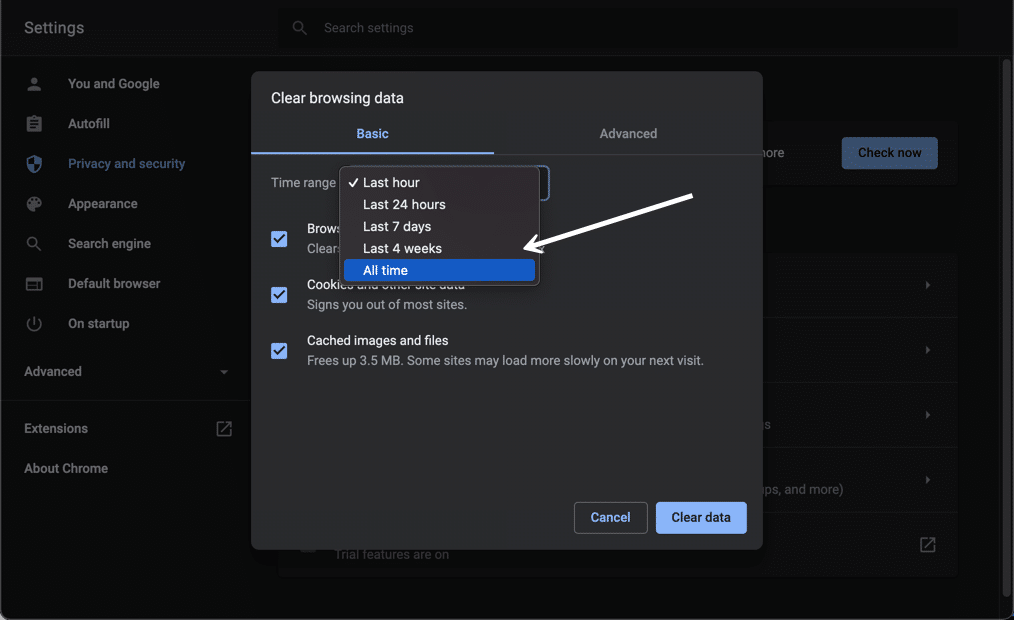
(2) Select all time
(3) Clear data
3. Test Your SSL
If you have recently installed your SSL, you must check it through a third-party tool.
The tool will quickly diagnose problems with your SSL certificate installation.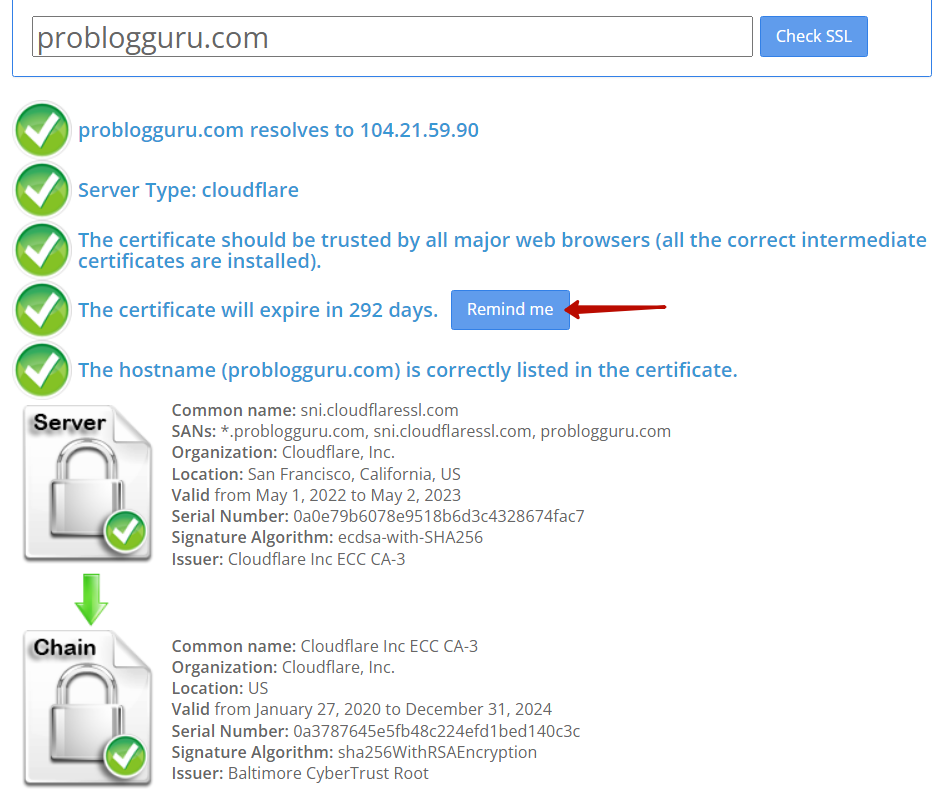
You can verify the SSL certificate on your web server to make sure it is correctly installed, valid, and doesn’t give any errors.
The tool will inform you about your SSL compatibility with major web browsers and expiration days.
You can even set up free email reminders for SSL expiration to get it before SSL expires.
4. Check Your SSL Certificate Validation Period
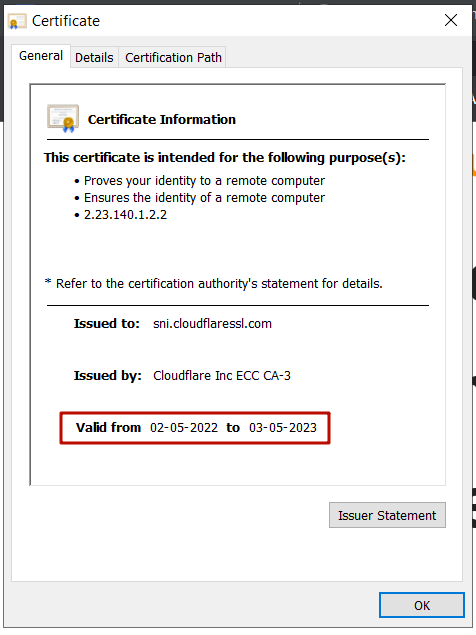 Is your SSL certificate validation period over? Well, that is a significant roadblock.
Renew your certificate if it is paid. If you are using free SSL, it will automatically renew.
But it won’t work due to the failure of the autoscript. You can contact the GoDaddy Support team to renew it.
5. Sync Your PC’s clock To time
Do you browse on old computers?
There is a higher possibility that your PC doesn’t sync data and time automatically.
Browsers will get the wrong date and miscalculate the SSL certificate validation period.
Then the browser may assume your certificate is invalid.
Sync Date & Time on Windows
(1) Click on Date and Time 
(2) Click Date and Time setting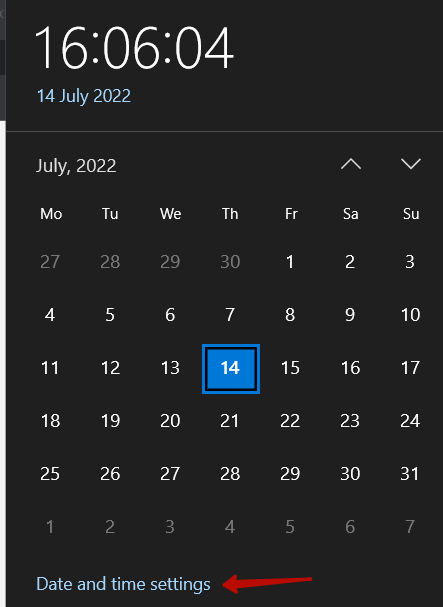
(2) Put on Set time automatically and Time Zone also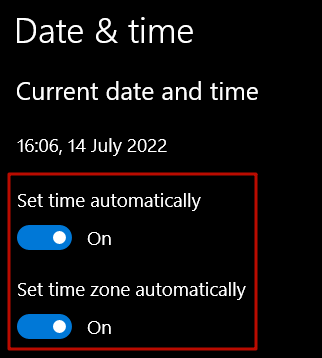
Sync Date & Time on Mac
(1) Go to the Settings app and click on Date & Time.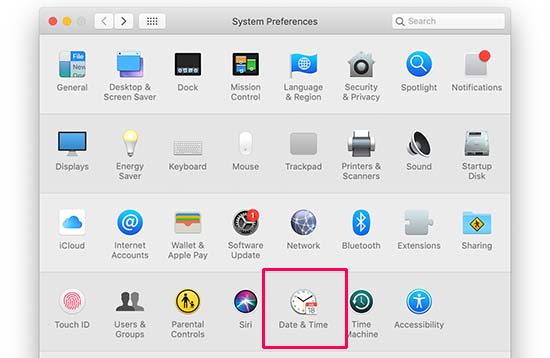
(2) Check on Set data and time automatically and save changes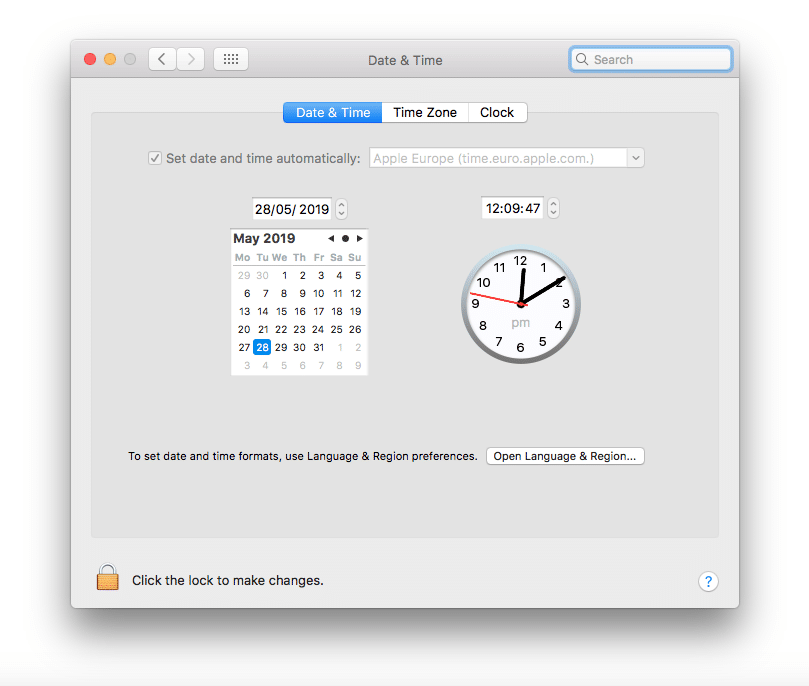
6. Turn off Firewall
If you are using antivirus on your PC, it might block your SSL certificate. Please turn it off and revisit your web property.
In some rare cases, a VPN service can also block the certificate.
7. Setup SSL For All Variations of Domain
If you have set up SSL for the non-www domain version, you can get the error on the www domain version.
Chrome will show the error code-
SSL_ERROR_BAD_CERT_DOMAIN
The error can also appear after moving to a new domain name or server.
Reinstall your SSL for both variations of your domain, or you can redirect all traffic to the domain version with SSL installed.
8. Fix Mixed Content Error
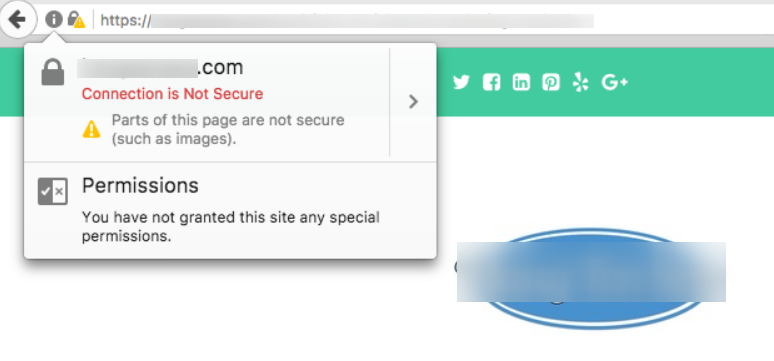 Do you see “Padlock is not green” or “Your connection to this site is not fully secure”.
It means that some of your website resources, like images, scripts, or a stylesheet, are still loading through the insecure HTTP protocol.
Now fix it quickly.
You need to install and activate the Really Simple SSL plugin, and it will take care of everything like mixed content, http redirection to HTTPS, etc.
You can validate the abolishment of the error by simply going through the plugin’s setting page.
9. Fix Too Many Redirects
In some scenarios, after adding https before the WordPress address and the site address in general settings, redirect loops begin to appear.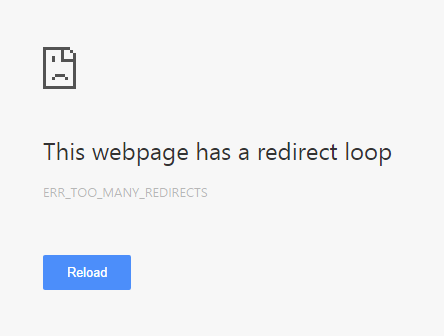
To fix it add the following code before “That’s all, stop editing! Happy blogging” in wp-config.php
define('FORCE_SSL_ADMIN', true);
// in some setups HTTP_X_FORWARDED_PROTO might contain
// a comma-separated list e.g. http,https
// so check for https existence
if (strpos($_SERVER['HTTP_X_FORWARDED_PROTO'], 'https') !== false)
$_SERVER['HTTPS']='on';
10. Setup HTTP to HTTPS Redirection
WordPress doesn’t automatically redirect HTTP requests to HTTPS.
You can use the Really Simple SSL plugin. Or you can add the code to your .htaccess file.
RewriteEngine On
RewriteCond %{HTTPS} off
RewriteRule ^(.*)$ https://%{HTTP_HOST}%{REQUEST_URI} [L,R=301]
11. Disable Browser Extensions
A web admin keeps multiple extensions in his browser. I guess you might also have.
Some extensions can block SSL due to poor coding or strict VPN service.
Now switch all off. Simply visit chrome://extensions. If the website is working fine, start testing with trials of extensions and figure out culprit one.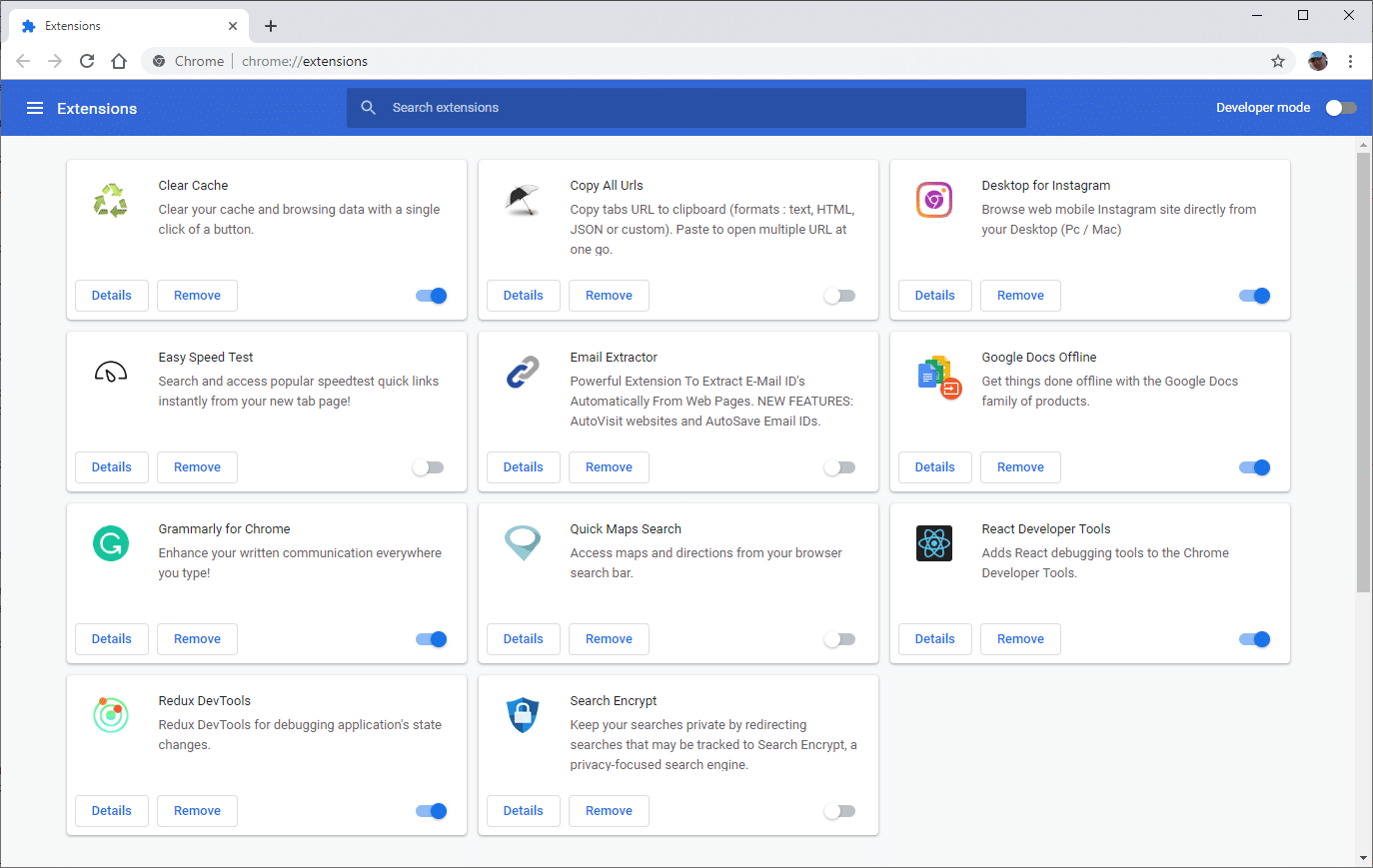
We hope your website is free from SSL errors. Please share the post.
Let me know in the comment box if you’re still facing it. We will be pleased to help you.
FAQ
1. Why does my GoDaddy site suddenly show “Your connection is not private”?
This warning appears when your browser fails to validate your SSL certificate. It can be due to an expired SSL, wrong domain mapping, mixed content, or even an outdated system clock. In simple words, the SSL handshake between the browser and server is broken. Until the browser confirms a secure encrypted connection, it will block your site and flash the warning.
2. Can an expired SSL cause this error instantly?
Yes, the moment an SSL certificate expires, the browser loses trust. It sees your site as unsafe and shows the warning without mercy. Paid SSL must be renewed manually, while free SSL usually renews automatically. If the renewal script fails, the certificate becomes invalid. In that case, renew it from your hosting dashboard or ask GoDaddy support to refresh it.
3. Why does the error appear after moving to a new domain?
When you migrate your site to a new domain, SSL information may no longer match the domain name. Browsers expect the SSL certificate to match exactly. If your certificate still belongs to the old domain, you will see codes like ERR CERT COMMON NAME INVALID. Reinstall SSL for the new domain and ensure both www and non-www versions are covered.
4. Can mixed content really trigger this warning?
Yes, mixed content is one of the most ignored problems. Even if your SSL is valid, loading images, scripts, or styles from an insecure HTTP link breaks the secure chain. Browsers detect this and mark the page as not fully secure. The easiest fix is using the Really Simple SSL plugin. It forces all your assets to load through HTTPS instantly.
5. Why does my browser show the error only on my computer?
If the issue appears only on your device, it is likely caused by local factors. Outdated date and time settings, aggressive antivirus firewalls, VPNs, or browser extensions can disrupt SSL validation. Sync your system clock, disable VPNs temporarily, clear the cache, and turn off suspicious extensions. In many cases, the website will load normally after this.
6. What should I do if I see too many redirects after enabling HTTPS?
This happens when your site forces HTTPS from multiple places. For example, WordPress settings, .htaccess rules, plugins, or a proxy can all conflict. The result is a redirect loop. You can fix it by adding the correct HTTPS force code in wp-config or adjusting your redirection rules. Once cleaned up, the site loads normally without loops.
More Fixes:
- [Solved] GoDaddy Critical Error on WordPress
- [Solved] GoDaddy 403 Forbidden Error
- [Solved] GoDaddy 502 Bad Gateway WordPress
- [Solved] GoDaddy WordPress Site Slow, Now Load in 1s [2026]
- [Solved] GoDaddy 503 Service Unavailable [2026]
- [Solved] 500 Internal Server Error WordPress GoDaddy [2026]
- [Solved] Godaddy Error Establishing a Database Connection in WordPress

Ravi Kumar is a Server Performance Analyst with over 4 years of experience benchmarking cloud infrastructure. He has optimized and stress-tested over 150+ websites, digging deep into uptime, disk latency, and CPU performance. Whether you’re looking for a free trial or a high-performance production server, Ravi uses real-world data to help you find the perfect host.
Good insight on the need to keep the PC’s clock synchronized to avoid privacy errors. It’s surprising how often this gets overlooked but it really messes with SSL certificate verification. Never thought turning off the firewall as a troubleshooting step though. Isn’t that kinda risky, especially if you don’t know the root cause of your connection not being private? I’m curious about the logic behind that, seems a bit like playing with fire.
Hey there Ravi Kumar, I really appreciate the breakdown on fixing the ‘Your Connection is Not Private’ error since I’ve been seeing this on my own business website more often than I’d like. I tried refreshing the page and clearing the browser cache, which kinda worked but not always. I was particularly interested in the part about testing SSL and setting up SSL for all domain variations. Could you maybe go a bit more into detail on how exactly one would go about testing their SSL? Is there a tool you recommend? And for setting up SSL for all domain variations, is this something that requires a developer, or could someone with a basic understanding of websites manage? Thanks a ton!
Hey Sarah, not Ravi but hope I can help. For testing your SSL, you could use tools like SSL Labs’ SSL Test. It’s pretty straightforward. As for setting up SSL for various domain variations, if you’re using a platform like WordPress, there are plugins that can help you automate this process. Otherwise, it might involve some manual configuration or reaching out to your hosting provider. It’s manageable with some basic knowledge!
so i got this problem with my blog where it says the connection isn’t private and I’m really confused about what to do. like do i need to buy something? is it gonna cost a lot? i just started this blog and honestly im super lost lol. any help would be super appreciated!
Turn off Firewall seems a bit iffy to me. Im all for getting rid of those annoying ‘connection is not private’ warnings but isn’t turning off the firewall kinda asking for trouble? Maybe it’s just me being over cautious but I’d hate to trade one security issue for another. Is there another workaround that might not leave my computer so exposed?
Got to agree with Marcy here. Disabling the firewall even temporarily sounds risky. There gotta be better ways to deal with SSL issues without putting your data on the line. Anyone found safe alternatives?
hey, just wanted to say cheers for the piece on syncing the PC’s clock. never realized how off time could mess with my browser security warnings. fixed it and it’s smooth sailing now. solid advice.
I found the section about SSL certificate validation very enlightening, Ravi Kumar. My website just started showing this ‘Your connection is not private’ error, and I hadn’t considered the SSL certificate might have expired. How can I ensure that my website’s SSL certificate remains valid indefinitely, or is there a recommended schedule for checking its validity? Looking for a proactive way to prevent this in the future. Thanks in advance for your advice.