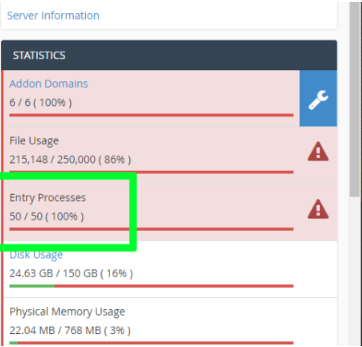
Did you see a red line in the block of entry processes under the statistics section on the right sidebar of cPanel?
That means something went wrong with your server, whether the host is GoDaddy or A2Hosting.
Due to this issue, the number of PHP processes has crossed the limit of allowed processes set by your host.
Unfortunately, your visitor can see “Resource Limit is Reached” or “508 error” in front of your website. 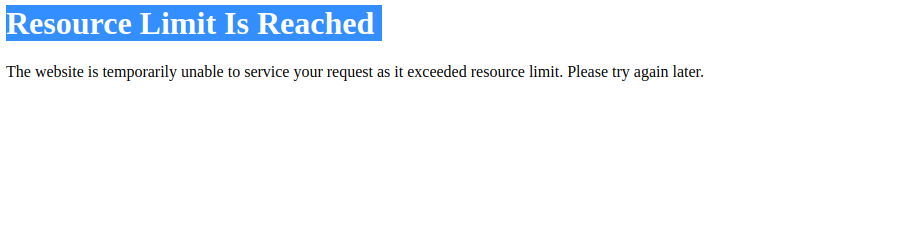 It can hurt your revenue as well as your business reputation.

So hurry now.
Table of Contents
Fix Entry Process cPanel Limit Reached
Seeing a red alert for entry processes in cPanel? That means your server hit the max number of allowed PHP/HTTP processes—causing “Resource Limit Reached” or 508 errors. This can damage both user experience and business reputation. Here’s how to fix it:
✅ What’s the Issue?
PHP scripts, cron jobs, or CGI processes are exceeding server limits—often due to heavy traffic, bad plugins, or attacks.
🔧 Fixes Include:
- Avoid Resource-Hungry Plugins – Use WP Hive to identify bloated plugins; switch to lightweight ones like WP Rocket or RankMath.
- Limit Plugin Count – Too many active (even inactive) plugins hog resources and invite vulnerabilities.
- Fix Plugin/Theme Conflicts – Incompatible code causes long-running scripts.
- Reduce Cron Job Load – Excessive automation eats RAM/CPU; go manual where possible.
- Don’t Overload Hosting – Hosting many sites on one shared account = disaster.
- Secure from Attacks – Use Cloudflare (enable “I’m Under Attack!”), Wordfence, Limit Login plugin, and bot protection.
- Optimize Speed Properly – Poor optimization causes unnecessary script load.
- Upgrade to Cloud VPS – If your traffic is real and rising, switch to Cloud VPS with dedicated resources. Some offer 30-day free trials with $100 credit.
🛡️ Pro Tip:
Mitigate bot traffic with Cloudflare’s Bot Fight Mode and monitor suspicious activity with security plugins.
When resource limits hit hard, either optimize your current stack or scale up to a VPS to regain peace of mind.
What are Entry Processes?
 As you know, WordPress’s backend is built of PHP.
Whenever a visitor tries to access your WordPress website, WordPress runs PHP processes to make an HTTP response to fulfill the user’s HTTP request.
These processes appear in the entry process section and are completed in less than a second.
The section also includes CGI scripts, cron jobs, and show sessions.
A myth among beginners is that 20 entry processes denote merely 20 visitors. No, 20 processes can handle around 60–70 visitors in real time.
It is noticeable that a caching system or a caching plugin plays a big role in sustaining huge loads of visitors.
Why Has Entry Processes Limit Reached?
As I said earlier, a process takes less than a second to complete.
But sometimes, some PHP scripts take longer than usual to execute and keep the server busy for a long time due to software conflicts, massive traffic, or cyberattacks.
That will increase the number of processes, and it can cross the limit. Then we get the error.
How To Fix Entry Process Limit Reached
Many factors contribute to resource-hungry script execution, unusual sudden traffic, and security vulnerabilities. We need to fix them.
1.Avoid Resource-Hungry Plugin
There are thousands of plugins in the WordPress directory. Some of them are lightweight and consume fewer resources to perform their actions.
On the contrary, some are heavily coded, adding a bunch of CSS & JS code to your blog.
The server needs more resources than the general need to run a bunch of codes.
It’s interesting that users usually do not use all the features of heavy plugins but are obliged to load all codes.
Loading heavier codes causes server slowness, an increase in entry processes, or resource scarcity.
So find out if you are using a heavy one.
How To Trace Resource-Hungry Plugins
1. Install WP Hive extension in your Chrome browser.
2. Visit wordpress.org/plugins
3. Search your plugin, i.e., Jetpack.
4. Find WP Hive Insight on the right side below the plugin image.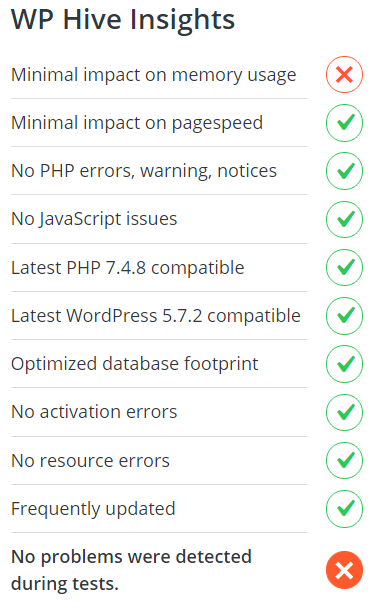
If the minimal impact on memory usage or page speed is under the red cross, you should avoid the plugins and use an alternate one.
My Favorite Lightweight Plugins
2. Avoid Too Many Plugins
As beginners, we used to install many plugins to test them and figure out the best one.
It is a good thing.
But we often forget to deactivate them. These just keep eating our precious server resources and adding extra load to the origin server.
Even a deactivated plugin is a security threat because it won’t get updated and become vulnerable.
Hackers can exploit it to take over the website, and they can ruin website data.
So if you don’t use any plugins, deactivate and delete them from your website. It will unburden your server.
3. Fix Plugin Conflicts
Plugins are essential to grow our WordPress website, which various developers make from around the world.
Therefore, the coding style will be different. It may cause compatibility issues with other plugins or themes.
Sometimes two plugins from the same developer can cause problems.
Recently, my client updated the Elementor plugin, but the Elementor Pro plugin started to cause a PHP Fatal error. I had to fix it.
The other two reasons are improper speed optimization and using PHP 8.1. You can fix it with the guide.
4. Fix Theme Conflicts
If all the plugins are alright, your theme may be the culprit. The reasons might be the same as plugin conflicts. You can follow up to fix it.
5. Stop Huge Cron Jobs
 Cron Jobs is like an AI-based robot that automates many tasks like backups, post sharing, post publishing, plugin auto-updating, etc.
It requires RAM and CPU resources and adds numbers to the entry process.
Do minimal automation and more manual tasks, especially on shared hosting.
If you are on VPS, you can chill pills with automation.
6. Don’t Host Too Many Websites on A Single Host Account
 Many websites on a single account are like too many eggs in a basket, which have a higher chance of falling and breaking.
Many websites crave a lot of resources. If any website gets viral or has huge bot traffic, resource consumption will increase.
It impacts other websites too. On shared hosting, the situation gets much worse.
In fact, it is not recommended to keep multiple websites on a server for security and safety.
If one property gets hacked, the rest can also get infected. It can blow up your online empire in a few seconds.
7. Secure from Cyber Attacks
30,000 websites are hacked every day. It’s so scary. Hackers can execute brute force to know your password, DDoS attacks to take down your server, and XSS attacks to take control of your website.
During the attack, the server loads and processes touch the sky. In this frightening case, shared hosts usually suspend the account to save others’ properties.
What can we do to protect our website?
# Use Cloudflare – Put security level high.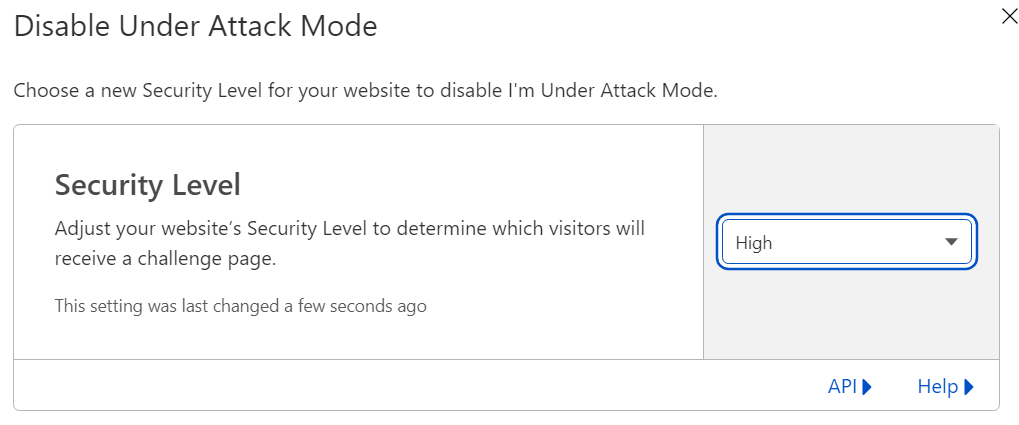 You can also choose “I’m Under Attack!” when you feel the hacker is about to bomb you.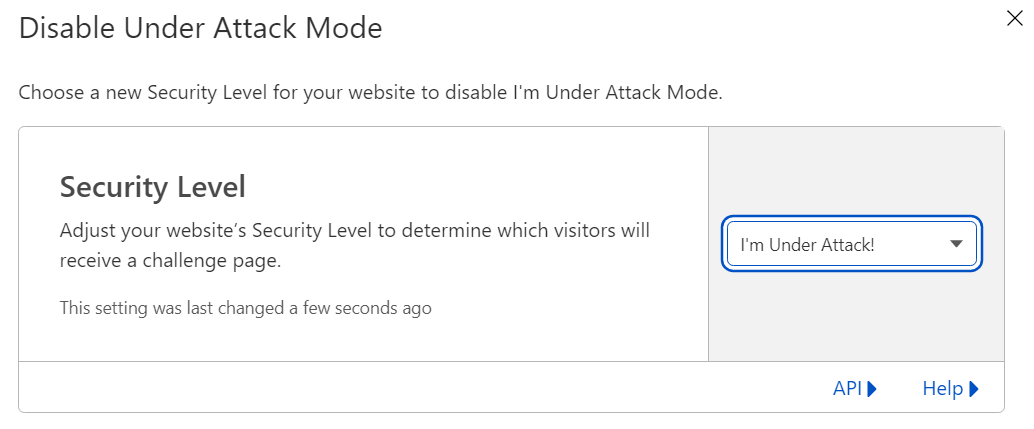
# Use Wordfence Plugin – It will enable a firewall and scan your files to deduct suspicious code or files.
# Limit Login Plugin – it will protect your login page from brute force attacks.
8. Shield Against Bot Traffic
Nearly all bots make up two-thirds of internet traffic. The army of bots may have an impact on your website.
Massive bot traffic can overutilize your resources and hamper your server processes.
Use Wordfence and Cloudflare. In Cloudflare, don’t forget to enable bot fight mode under the security tab.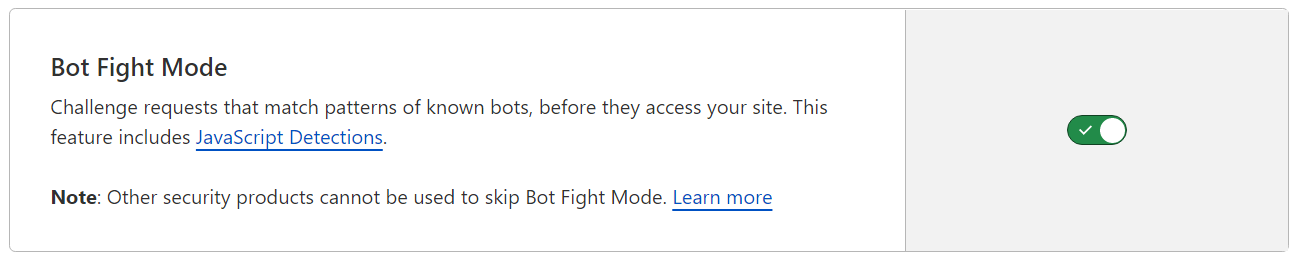
9. Do A Proper Speed Optimization
 Did you do speed optimization recently? If you are a novice, there’s a higher possibility that you might have done something wrong.
You might have blocked, combined, or minified important files that need to be loaded separately. It can alleviate your server performance.
So it would help if you need proper speed optimization; hire any speed expert today.
10. Move To Cloud VPS
If any of these reasons are not behind it, you should be happy because it might be due to genuine, massive traffic.
You need to upgrade your host or move to a cloud VPS.
You will get amazing cluster features on Cloud VPS that drive unbeatable uptime.
Guaranteed private resources like bandwidth, SSD storage, RAM, and CPU let you feel how a kite flies in the sky.
Ultimately, it brings more security, top-notch performance, and blazing speed. You can try the enterprise-grade VPS for WordPress and other CMSs for 30 days with a $100 credit at no cost.
FAQ
1. Why am I seeing a red line in the entry processes section of cPanel?
A red line means your server has hit the maximum number of PHP or HTTP processes allowed by your hosting provider. When this happens, your website cannot handle new requests, which leads to “Resource Limit Reached” or 508 errors. This usually happens due to heavy plugins, theme issues, high traffic, bot attacks, or long-running PHP scripts.
2. Can too many plugins cause the entry process limit to reach its maximum?
Yes, too many plugins can easily overload a shared hosting environment. Even inactive plugins consume resources and create vulnerabilities. Heavy plugins add extra CSS, JS, and PHP scripts, which slow down the server and increase the number of running processes. Removing unnecessary plugins brings immediate performance improvement.
3. What should I do if my entry processes spike because of plugin or theme conflicts?
You should diagnose the issue by disabling recently updated plugins or themes, checking error logs, and identifying any PHP fatal errors. Conflicts often occur after updates or poor optimization. Fixing them usually reduces long-running scripts and frees up server resources. If the problem continues, switch to a lightweight theme or replace the problematic plugin.
4. When is upgrading to Cloud VPS the right solution for entry process limits?
If your traffic is growing or the spike in entry processes comes from genuine visitors rather than bots or bad code, upgrading to a Cloud VPS is the best long-term solution. A VPS gives you dedicated CPU, RAM, SSD, and bandwidth with no shared limits. You also get smoother performance, stronger security, and more freedom to run cron jobs or heavy plugins without hitting resource limits.

Ravi Kumar is a Server Performance Analyst with over 4 years of experience benchmarking cloud infrastructure. He has optimized and stress-tested over 150+ websites, digging deep into uptime, disk latency, and CPU performance. Whether you’re looking for a free trial or a high-performance production server, Ravi uses real-world data to help you find the perfect host.
So, what’s the deal with these huge cron jobs? Like, how huge are we talking? I’ve got this image in my head of some behemoth task gobbling up all my resources, and it’s kinda freaking me out, not gonna lie. Does spacing them out really help, or is there some sort of cron job diet plan I could put them on? Also, does coffee help them run faster, asking for a friend.
Haha, Rob V., love the imagination there! If cron jobs were creatures, I’d say spacing them out is like giving them a good workout routine. Less about coffee, more about good scheduling. Make sure they’re not all trying to hit the gym at the same time.
didn’t know plugins could cause such a mess gonna have to check mine cause my site’s been super slow wonder if its those free plugins lol
While I don’t dispute the importance of mitigating cyber attacks, there’s a context missing in the discussion. Cybersecurity is multifaceted and cannot merely be fixed by a few preventive actions. Ensuring comprehensive security requires a continuously evolving strategy that incorporates latest technological advancements as well as employee training.
Moving to Cloud VPS seems like a big step but honestly might be the fix we need. I’ve been having issues with my blog slowing down because of the number of visitors and at first, I thought it was a good thing. More readers, right? But it just made the loading times insane. Ravi Kumar, are there any Cloud VPS providers you’d recommend for someone on a tight budget?
Hey Ravi Kumar, just stumbled upon this part about ‘Shield Against Bot Traffic’. I’m kinda curious, how exactly do you differentiate between good and bad bot traffic? My site’s been getting a lot of hits recently, and I can’t tell if it’s helping or hurting us. Got any tools or tips to share on this?
Sam T., try checking out tools like Cloudflare or Akamai. They’ve been great at filtering out the unnecessary traffic for our site.
Definitely scrutinize your access logs. Patterns often reveal the nature of the traffic. Anything repetitive from the same IP range might be a bot.